媒體組件
audio
功能說明 音訊。 本組件已停止維護,建議使用 wx.createInnerAudioContext 代替。
參數及說明:
| 内容 | 類型 | 預設值 | 必填 | 說明 |
|---|---|---|---|---|
| id | string | - | 否 | audio組件的唯一識別字 |
| src | string | - | 否 | 要播放音訊的資源地址 |
| loop | boolean | false | 否 | 是否迴圈播放 |
| controls | boolean | false | 否 | 是否顯示默認控制項 |
| poster | string | - | 否 | 默認控制項上的音訊封面的圖片資源地址,如果controls屬性值為false則設定poster無效 |
| name | string | 未知歌曲 | 否 | 默認控制項上的音訊名字,如果controls屬性值為false則設定name無效 |
| author | string | 未知歌曲 | 否 | 默認控制項上的作者名字,如果controls屬性值為false則設定author無效 |
| binderror | eventhandle | - | 否 | 當發生錯誤時觸發 error 事件,detail = {errMsg:MediaError.code} |
| bindplay | eventhandle | - | 否 | 當開始/繼續播放時觸發play事件 |
| bindpause | eventhandle | - | 否 | 當暫停播放時觸發pause事件 |
| bindtimeupdate | eventhandle | - | 否 | 當播放進度改變時觸發 timeupdate 事件,detail = {currentTime, duration} |
| bindended | eventhandle | - | 否 | 當播放到末尾時觸發ended事件 |
- 示例代碼:
wxml:
<!-- audio.wxml -->
<audio poster="{{poster}}" name="{{name}}" author="{{author}}" src="{{src}}" id="myAudio" controls loop></audio>

<button type="primary" bindtap="audioPlay">Playback</button>
<button type="primary" bindtap="audioPause">Pause</button>
<button type="primary" bindtap="audio14">Sets the current playback time to 14 seconds</button>
<button type="primary" bindtap="audioStart">Back to the beginning</button>
javascript:
// audio.js
Page({
  onReady: function (e) {
    // Uses wx.createAudioContext to get the audio context
    this.audioCtx = wx.createAudioContext("myAudio");
  },
  data: {
    poster:
      "http://y.gtimg.cn/music/photo_new/T002R300x300M000003rsKF44GyaSk.jpg?max_age=2592000",
    name: "At The Moment",
    author: "Xu Wei",
    src: "http://ws.stream.qqmusic.qq.com/M500001VfvsJ21xFqb.mp3?guid=ffffffff82def4af4b12b3cd9337d5e7&uin=346897220&vkey=6292F51E1E384E06DCBDC9AB7C49FD713D632D313AC4858BACB8DDD29067D3C601481D36E62053BF8DFEAF74C0A5CCFADD6471160CAF3E6A&fromtag=46",
  },
  audioPlay: function () {
    this.audioCtx.play();
  },
  audioPause: function () {
    this.audioCtx.pause();
  },
  audio14: function () {
    this.audioCtx.seek(14);
  },
  audioStart: function () {
    this.audioCtx.seek(0);
  },
});
image
功能說明: 圖片
參數及說明:
| 内容 | 類型 | 預設值 | 說明 |
|---|---|---|---|
| src | string | - | 圖片資源地址 |
| mode | string | 'scaleToFill' | 圖片裁剪、縮放的模式 |
| show-menu-by-longpress | boolean | false | 長按圖片顯示類似保存圖片的選單 |
| lazy-load | boolean | false | 圖片懶加載。 只針對page與scroll-view下的image有效 |
| binderror | handleevent | - | 當錯誤發生時,發佈到 AppService 的事件名,事件對象 event.detail = {errMsg: 'something wrong'} |
| bindload | handleevent | - | 當圖片載入完畢時,發佈到 AppService 的事件名,事件對象 event.detail = {height:'圖片高度px', width:'圖片寬度px'} |
TIP
- image組件默認寬度300px、高度225px
- image組件進行縮放時,計算出來的寬高可能帶有小數,在不同webview內核下渲染可能會被抹去小數部分
mode有效值:mode有13種模式,其中4種是縮放模式,9種是裁剪模式。
| 模式 | 值 | 說明 |
|---|---|---|
| 縮放 | scaleToFill | 不保持縱橫比縮放圖片,使圖片的寬高完全拉伸至填滿image元素 |
| 縮放 | aspectFit | 保持縱橫比縮放圖片,使圖片的長邊能完全顯示出來。 即可以完整地將圖片顯示出來 |
| 縮放 | aspectFill | 保持縱橫比縮放圖片,只保證圖片的短邊能完全顯示出來。 即圖片通常只在水准或垂直方向是完整的,另一個方向將會發生截取 |
| 縮放 | widthFix | 寬度不變,高度自動變化,保持原圖寬高比不變 |
| 裁剪 | top | 不縮放圖片,只顯示圖片的頂部區域 |
| 裁剪 | bottom | 不縮放圖片,只顯示圖片的底部區域 |
| 裁剪 | center | 不縮放圖片,只顯示圖片的中間區域 |
| 裁剪 | left | 不縮放圖片,只顯示圖片的左邊區域 |
| 裁剪 | right | 不縮放圖片,只顯示圖片的右邊區域 |
| 裁剪 | top left | 不縮放圖片,只顯示圖片的左上角區域 |
| 裁剪 | top right | 不縮放圖片,只顯示圖片的右上角區域 |
| 裁剪 | bottom left | 不縮放圖片,只顯示圖片的左下邊區域 |
| 裁剪 | bottom right | 不縮放圖片,只顯示圖片的右下邊區域 |
示例代碼:
wxml:
<view class="page">
  <view class="page__hd">
    <text class="page__title">image</text>
    <text class="page__desc">image</text>
  </view>
  <view class="page__bd">
    <view class="section section_gap" wx:for="{{array}}" wx:for-item="item">
      <view class="section__title">{{item.text}}</view>
      <view class="section__ctn">
        <image style="width: 200px; height: 200px; background-color: #eeeeee;" mode="{{item.mode}}" src="{{src}}"></image>
      </view>
    </view>
  </view>
</view>
javascript:
Page({
  data: {
    array: [
      {
        mode: "scaleToFill",
        text: "scaleToFill: Scales the image without preserving the aspect ratio, stretching it to fill the image element completely. ",
      },
      {
        mode: "aspectFit",
        text: "aspectFit: Scales the image while preserving the aspect ratio, ensuring the entire image is visible (long side fits).",
      },
      {
        mode: "aspectFill",
        text: "aspectFill: Scales the image while preserving the aspect ratio, ensuring the short side fits, potentially cropping the long side.",
      },
      {
        mode: "top",
        text: "top: Does not scale the image, only shows the top part.",
      },
      {
        mode: "bottom",
        text: "bottom: Does not scale the image, only shows the bottom part.",
      },
      {
        mode: "center",
        text: "center: Does not scale the image, only shows the center part.",
      },
      {
        mode: "left",
        text: "left: Does not scale the image, only shows the left part.",
      },
      {
        mode: "right",
        text: "right: Does not scale the image, only shows the right part.",
      },
      {
        mode: "top left",
        text: "top left: Does not scale the image, only shows the top-left part.",
      },
      {
        mode: "top right",
        text: "top right: Does not scale the image, only shows the top-right part.",
      },
      {
        mode: "bottom left",
        text: "bottom left: Does not scale the image, only shows the bottom-left part.",
      },
      {
        mode: "bottom right",
        text: "bottom right: Does not scale the image, only shows the top-right part.",
      },
    ],
    src: "https://res.wx.qq.com/wxdoc/dist/assets/img/0.4cb08bb4.jpg",
  },
  imageError: function (e) {
    console.log(
      "An error event is triggered in image3, and the carried value is",
      e.detail.errMsg
    );
  },
});
video
- 功能說明: 視頻。 低版本為原生組件,使用時請注意 原生組件 使用限制。
| 内容 | 類型 | 預設值 | 說明 |
|---|---|---|---|
| src | string | - | 要播放視頻的資源地址,支持雲文件ID |
| duration | number | - | 指定視頻時長 |
| controls | boolean | true | 是否顯示默認播放控制項(播放/暫停按鈕、播放進度、時間) |
| danmu-list | Object Array | - | 彈幕清單 |
| danmu-btn | boolean | false | 是否顯示彈幕按鈕,只在初始化時有效,不能動態變更 |
| enable-danmu | boolean | false | 是否展示彈幕,只在初始化時有效,不能動態變更 |
| autoplay | boolean | false | 是否自動播放 |
| loop | boolean | false | 是否迴圈播放 |
| muted | boolean | false | 是否靜音播放 |
| initial-time | number | - | 指定視頻初始播放位置 |
| page-gesture | boolean | false | 在非全屏模式下,是否開啟亮度與音量調節手勢 |
| direction | number | - | 設定全屏時視頻的方向,不指定則根據寬高比自動判斷 有效值為0(正常豎向) 有效值為90(荧幕逆時針90度) 有效值為-90(荧幕順時針90度) |
| show-progress | boolean | true | 若不設定,寬度大於240時才會顯示 |
| show-fullscreen-btn | boolean | true | 是否顯示全屏按鈕 |
| show-play-btn | boolean | true | 是否顯示視頻底部控制欄的播放按鈕 |
| show-center-play-btn | boolean | true | 是否顯示視頻中間的播放按鈕 |
| enable-progress-gesture | boolean | true | 是否開啟控制進度的手勢 |
| object-fit | string | contain | 當視頻大小與video容器大小不一致時,視頻的表現形式 包含 填充 覆蓋 |
| poster | string | - | 視頻封面的圖片網絡資源地址或雲文件ID。 若controls屬性值為false則設定poster無效 |
| show-mute-btn | boolean | false | 是否顯示靜音按鈕 |
| title | string | - | 視頻的標題,全屏時在頂部展示 |
| play-btn-position | string | bottom | 播放按鈕的位置: 有效值為bottom(controls bar上) 有效值為center(視頻中間) |
| enable-play-gesture | boolean | false | 是否開啟播放手勢,即按兩下切換播放/暫停 |
| auto-pause-if-navigate | boolean | true | 當跳轉到其它小程序頁面時,是否自動暫停本頁面的視頻 |
| auto-pause-if-open-native | boolean | true | 當跳轉到其它原生頁面時,是否自動暫停本頁面的視頻 |
| vslide-gesture | boolean | false | 在非全屏模式下,是否開啟亮度與音量調節手勢(同page-gesture) |
| vslide-gesture-in-fullscreen | boolean | true | 在全屏模式下,是否開啟亮度與音量調節手勢 |
| picture-in-picture-mode | string/Array | - | 設定小窗模式: push, pop, 空字串或通過數組形式設定多種模式(如: ['push', 'pop']) |
| enable-auto-rotation | boolean | false | 是否開啟手機橫屏時自動全屏,當系統設置開啟自動旋轉時生效 |
| bindplay | eventhandle | - | 當開始/繼續播放時觸發play事件 |
| bindpause | eventhandle | - | 當暫停播放時觸發pause事件 |
| bindended | eventhandle | - | 當播放到末尾時觸發ended事件 |
| bindtimeupdate | eventhandle | - | 播放進度變更時觸發,event.detail = {currentTime, duration} 。觸發頻率250ms一次 |
| bindfullscreenchange | eventhandle | - | 影片進入和退出全螢幕時觸發,event.detail = {fullScreen, direction},direction 有效值為 vertical 或 horizontal |
| bindwaiting | eventhandle | - | 視頻出現緩衝時觸發 |
| binderror | eventhandle | - | 視頻播放出錯時觸發 |
| bindprogress | eventhandle | - | 載入進度變化時觸發,只支援一段載入。 event.detail = {buffered},百分比 |
| bindloadedmetadata | eventhandle | - | 視訊元資料載入完成時觸發。 event.detail = {width, height, duration} |
TIP
<video>默認寬度300px、高度225px,可通過wxss設定寬高。
- 小窗特性說明:
push模式,即從當前頁跳轉至下一頁時出現小窗(頁面棧push)。
pop模式,即離開當前頁面時觸發(頁面棧pop)。
以上兩種路由行為均觸發小窗。
小窗容器尺寸會根據原組件尺寸自動判斷。
點擊小窗,用戶會被導航回小窗對應的播放機頁面。
小窗出現後,用戶可點擊小窗右上角的關閉按鈕或調用context.exitPictureInPicture()接口關閉小窗。
示例代碼:
wxml:
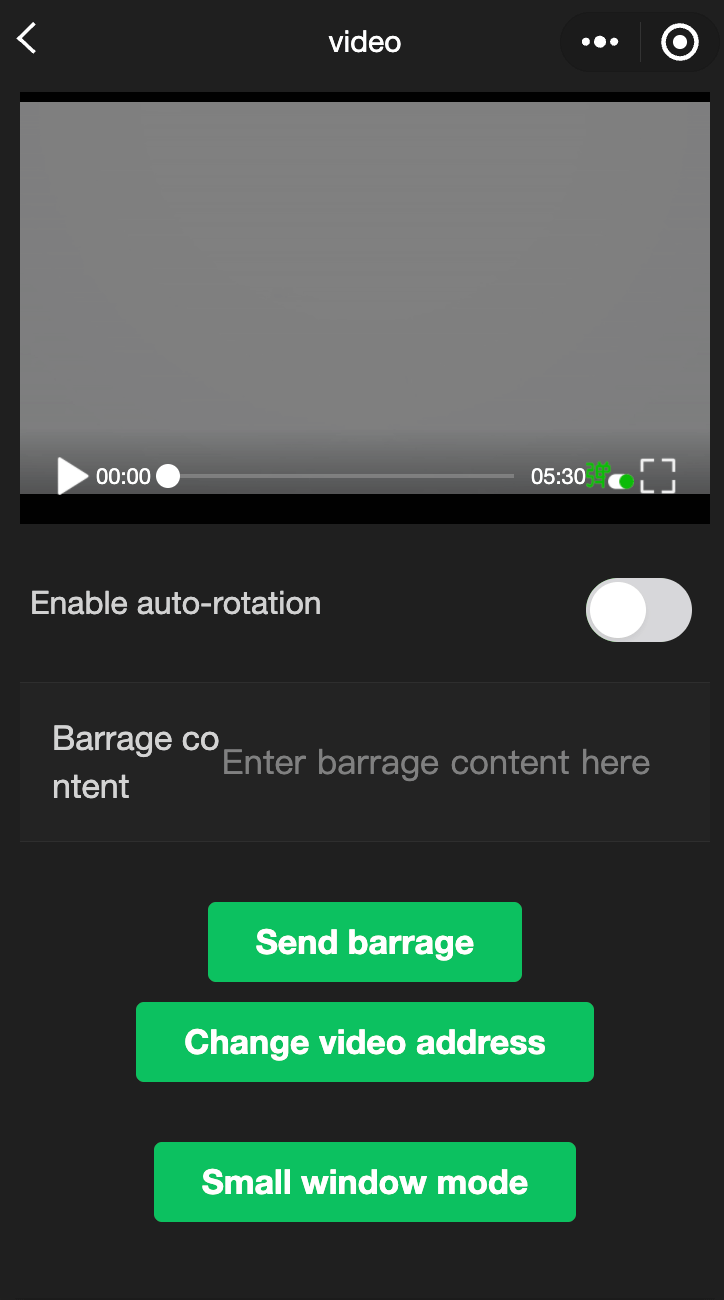
<view class="page-body">
<view class="page-section tc">
<video
id="myVideo"
src="http://wxsnsdy.tc.qq.com/105/20210/snsdyvideodownload?filekey=30280201010421301f0201690402534804102ca905ce620b1241b726bc41dcff44e00204012882540400&bizid=1023&hy=SH&fileparam=302c020101042530230204136ffd93020457e3c4ff02024ef202031e8d7f02030f42400204045a320a0201000400"
binderror="videoErrorCallback"
danmu-list="{{danmuList}}"
enable-danmu
danmu-btn
show-center-play-btn='{{false}}'
show-play-btn="{{true}}"
controls
picture-in-picture-mode="{{['push', 'pop']}}"
bindenterpictureinpicture='bindVideoEnterPictureInPicture'
bindleavepictureinpicture='bindVideoLeavePictureInPicture'
></video>
<view style="margin: 30rpx auto" class="weui-label">On-screen comment content</view>
<input bindblur="bindInputBlur" class="weui-input" type="text" placeholder="Type your on-screen comment here" />
<button style="margin: 30rpx auto" bindtap="bindSendDanmu" class="page-body-button" type="primary" formType="submit">Send on-screen comment</button>
<navigator style="margin: 30rpx auto" url="picture-in-picture" hover-class="other-navigator-hover">
<button type="primary" class="page-body-button" bindtap="bindPlayVideo">Picture-in-picture mode</button>
</navigator>
</view>
</view>javascript:
function getRandomColor() {
  const rgb = []
  for (let i = 0; i < 3; ++i) {
    let color = Math.floor(Math.random() * 256).toString(16)
    color = color.length === 1 ? '0' + color : color
    rgb.push(color)
  }
  return '#' + rgb.join('')
}

Page({
  onShareAppMessage() {
    return {
      title: 'video',
      path: 'page/component/pages/video/video'
    }
  },

  onReady() {
    this.videoContext = wx.createVideoContext('myVideo')
  },

  onHide() {

  },

  inputValue: '',
  data: {
    src: '',
    danmuList:
    [{
      text: 'The on-screen comment that appears in the first second',
      color: '#ff0000',
      time: 1
    }, {
      text: 'The on-screen comment that appears in the third second',
      color: '#ff00ff',
      time: 3
    }],
  },

  bindInputBlur(e) {
    this.inputValue = e.detail.value
  },

  bindButtonTap() {
    const that = this
    wx.chooseVideo({
      sourceType: ['album', 'camera'],
      maxDuration: 60,
      camera: ['front', 'back'],
      success(res) {
        that.setData({
          src: res.tempFilePath
        })
      }
    })
  },

  bindVideoEnterPictureInPicture() {
    console.log('Enters picture-in-picture mode')
  },

  bindVideoLeavePictureInPicture() {
    console.log ('Exits picture-in-picture mode')
  },

  bindPlayVideo() {
    console.log('1')
    this.videoContext.play()
  },
  bindSendDanmu() {
    this.videoContext.sendDanmu({
      text: this.inputValue,
      color: getRandomColor()
    })
  },

  videoErrorCallback(e) {
    console.log ('Video error message: ')
    console.log(e.detail.errMsg)
  }
})
animation-video
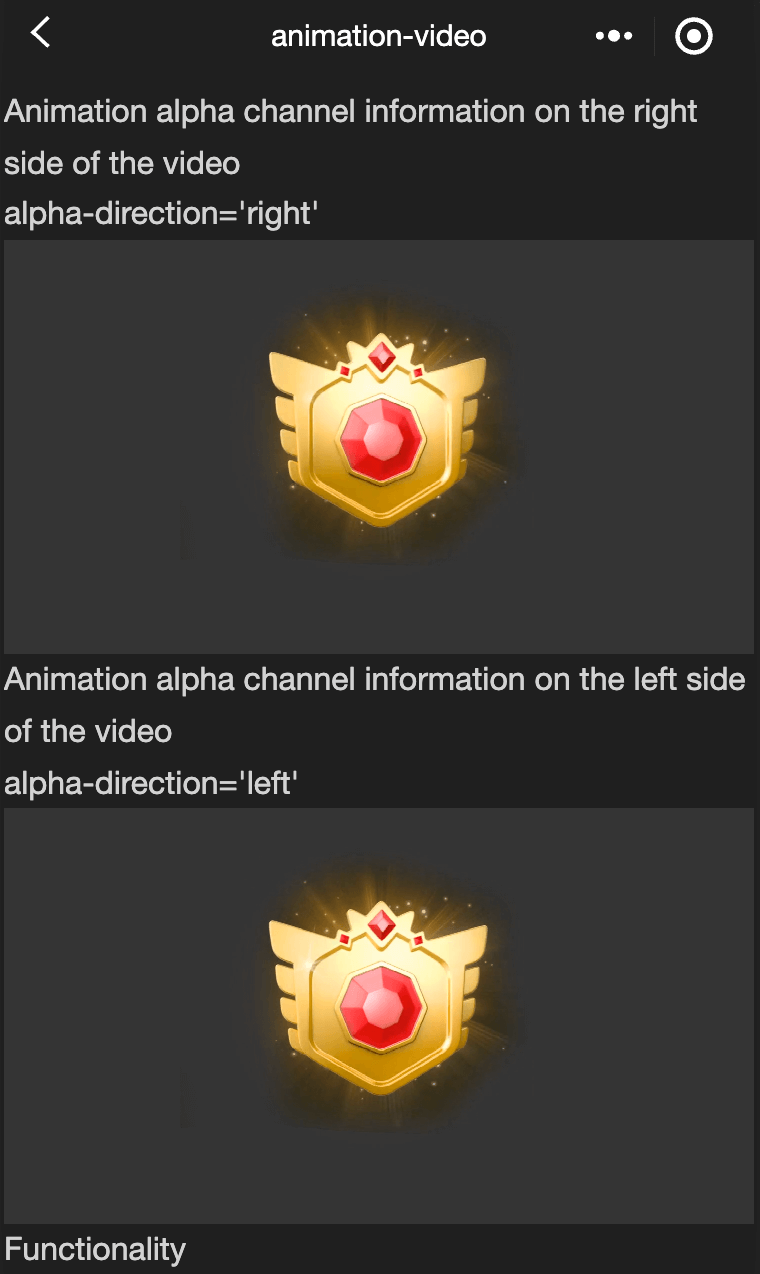
功能說明: animation-video屬於前端組件,為小程序提供了將特定視頻資源渲染為透明背景動效的能力,可以幫助開發者低成本實現更為沉浸,豐富的動畫效果,animation-video組件還提供豐富的API來控制動畫的播放,暫停,跳到指定位置等,相關API可參見 wx.createAnimationVideo
參數及說明:
| 内容 | 類型 | 預設值 | 必填 | 說明 |
|---|---|---|---|---|
| resource-width | number | 800 | 否 | 組件使用的video視頻資源的寬度(單位: px) |
| resource-height | number | 400 | 否 | 組件使用的video視頻資源的高度(單位: px) |
| canvas-style | string | width:400px; height:400px | 否 | 用於設定動畫畫布的CSS樣式 |
| path | string | 否 | 動畫資源地址,支持相對路徑以及遠程地址。 如果是遠程路徑, response header裏需要設定Access-Control-Allow-Origin來防止跨域問題 | |
| loop | boolean | false | 否 | 動畫是否迴圈播放 |
| autoplay | boolean | false | 否 | 動畫是否自動 |
| alpha-direction | string | left | 否 | 視頻資源中alpha通道的方向,left表示alpha通道在資源的左邊,right表示alpha通道在資源的右邊 |
| bindstarted | eventhandle | - | 否 | 動畫開始播放的回檔 |
| bindended | eventhandle | - | 否 | 當播放到末尾時觸發ended事件(自然播放結束會觸發回檔,迴圈播放結束及暫停動畫不會觸發) |
示例代碼:
wxml:
<view class="wrap">
<view class="card-area">
<view class="top-description border-bottom">
<view>Animation alpha channel information is on the right side of the video</view>
<view>alpha-direction='right'</view>
</view>
<view class="video-area">
<animation-video
path="{{rightAlphaSrcPath}}"
loop="{{loop}}"
resource-width="800"
resource-height="400"
canvas-style="width:200px;height:200px"
autoplay="{{autoplay}}"
bindstarted="onStarted"
bindended="onEnded"
alpha-direction='right'
></animation-video>
</view>
</view>
<view class="card-area">
<view class="top-description border-bottom">
<view>Animation alpha channel information is on the left side of the video</view>
<view>alpha-direction='left'</view>
</view>
<view class="video-area">
<animation-video
path="{{leftAlphaSrcPath}}"
loop="{{loop}}"
resource-width="800"
resource-height="400"
canvas-style="width:200px;height:200px"
autoplay="{{autoplay}}"
bindstarted="onStarted"
bindended="onEnded"
alpha-direction='left'
></animation-video>
</view>
</view>
</view>javascript:
Page({
  data: {
    loop: true,
    leftAlphaSrcPath:
      "https://efe-h2.cdn.bcebos.com/ceug/resource/res/2020-1/1577964961344/003e2f0dcd81.mp4",
    rightAlphaSrcPath:
      "https://b.bdstatic.com/miniapp/assets/docs/alpha-right-example.mp4",
    autoplay: true,
  },
  onStarted() {
    console.log("===onStarted");
  },
  onEnded() {
    console.log("===onEnded");
  },
});
camera
功能說明 系統相機,該組件是 原生組件 ,使用時請注意相關限制,相關API可參見 wx.createCameraContext
參數及說明:
| 内容 | 類型 | 合法值及說明 | 預設值 | 說明 |
|---|---|---|---|---|
| mode | string | normal:相機模式 scanCode:掃碼模式 | normal | 應用模式,只在初始化時有效,不能動態變更 |
| device-position | string | front:前置 back:後置 | back | 監視器朝向 |
| flash | string | auto:自動 on:打開 off:關閉 torch:常亮 | auto | 閃光燈,值為auto, on, off |
| bindstop | eventhandle | - | - | 監視器在非正常終止時觸發,如退出後臺等情况 |
| binderror | eventhandle | - | - | 用戶不允許使用監視器時觸發 |
| bindscancode | eventhandle | - | - | 在掃碼識別成功時觸發,僅在mode='scanCode'時生效 |
TIP
- 需要'用戶授權'scope.camera、 scope.record。
- 同一頁面只能插入一個camera組件。
- onCameraFrame接口根據frame-size返回不同尺寸的原始幀數據,與Camera組件展示的影像不同,其實際點數值由系統决定。
示例代碼:
wxml:
<camera
device-position="back"
flash="off"
binderror="error"
style="width: 100%; height: 300px;"
></camera>
<button type="primary" bindtap="takePhoto">Photograph</button>
<view>Preview</view>
<image mode="widthFix" src="{{src}}"></image>
javascript:
```js
Page({
takePhoto() {
const ctx = wx.createCameraContext()
ctx.takePhoto({
quality: 'high',
success: (res) => {
this.setData({
src: res.tempImagePath
})
}
})
},
error(e) {
console.log(e.detail)
}
})live-player
功能說明: 實时音視頻播放。 該組件是原生組件,使用時請注意 原生組件
參數及說明:
| 内容 | 類型 | 合法值及說明 | 預設值 | 說明 |
|---|---|---|---|---|
| src | string | - | - | 音視頻地址。 現時僅支持flv, rtmp格式 |
| mode | string | live: 直播 RTC: 實时通話 | live | 模式 |
| autoplay | boolean | - | false | 模式 |
| muted | boolean | - | false | 是否靜音 |
| orientation | string | vertica: 豎直 horizontal: 水准 | vertical | 畫面方向 |
| object-fit | string | contai: 影像長邊填滿荧幕,短邊區域會被填充⿊⾊ fillCrop: 影像鋪滿荧幕,超出顯示區域的部分將被截掉 | contain | 填充模式,可選值有contain, fillCrop |
| min-cache | number | - | 1 | 最小緩衝區,單位s(RTC模式推薦0.2s) |
| max-cache | number | - | 3 | 最大緩衝區,單位s(RTC模式推薦0.8s),緩衝區用來抵抗網絡波動,緩衝數據越多,網絡抗性越好,但時延越大 |
| sound-mode | string | speaker: 揚聲器 ear: 聽筒 | speaker | 應用模式,只在初始化時有效,不能動態變更 |
| auto-pause-if-navigate | boolean | - | true | 當跳轉到其它小程序頁面時,是否自動暫停本頁面的實时音視頻播放 |
| auto-pause-if-open-native | boolean | - | true | 當跳轉到其它宿主APP原生頁面時,是否自動暫停本頁面的實时音視頻播放 |
| picture-in-picture-mode | string/Array | []: 取消小窗 push: 路由push時觸發小窗 push: 路由push時觸發小窗 | - | 設定小窗模式: push, pop, 空字串或通過數組形式設定多種模式(如: ['push', 'pop']) |
| enable-auto-rotation | boolean | - | false | 是否開啟手機橫屏時自動全屏,當系統設置開啟自動旋轉時生效 |
| enable-metadata | boolean | - | false | 是否回檔metadata |
| bindstatechange | eventhandle | - | - | 播放狀態變更事件,detail = {code} |
| bindfullscreenchange | eventhandle | - | - | 全螢幕變化事件,detail = {direction, fullScreen} |
| bindnetstatus | eventhandle | - | - | 網路狀態通知,detail = {info} |
| bindaudiovolumenotify | eventhandle | - | - | 播放音量大小通知,detail = {} |
| bindenterpictureinpicture | eventhandle | - | - | 播放機進入小窗 |
| bindleavepictureinpicture | eventhandle | - | - | 播放機退出小窗 |
| bindmetadatachange | eventhandle | - | - | metadata通知,detail = {info} |
狀態碼
| 代碼 | 說明 |
|---|---|
| 2001 | 已經連接服務器 |
| 2002 | 已經連接服務器,開始拉流 |
| 2003 | 網絡接收到首個視頻數据包(IDR) |
| 2004 | 視頻開始播放 |
| 2006 | 視頻播放結束 |
| 2007 | 視頻播放Loading |
| 2008 | 解碼器啟動 |
| 2009 | 視頻分辯率改變 |
| -2301 | 網絡斷連,且多次重連無效,更多重試請自行重啓播放 |
| -2302 | 獲取加速拉流地址失敗 |
| 2101 | 當前視頻幀解碼失敗 |
| 2102 | 當前音訊幀解碼失敗 |
| 2103 | 網絡斷連,已啟動自動重連 |
| 2104 | 網絡來包不穩。 可能是下行頻寬不足,或由於主播端出流不均勻 |
| 2105 | 當前視頻播放出現卡頓 |
| 2106 | 硬解啟動失敗,採用軟解 |
| 2107 | 當前視頻幀不連續,可能丟幀 |
| 2108 | 當前流硬解第一個I幀失敗,SDK自動切軟解 |
| 3001 | RTMP -DNS解析失敗 |
| 3002 | RTMP服務器連接失敗 |
| 3003 | RTMP服務器握手失敗 |
| 3005 | RTMP讀/寫失敗 |
網絡狀態數據
| 鍵名 | 說明 |
|---|---|
| videoBitrate | 當前視頻數據接收位元速率,單位: kbps |
| audioBitrate | 當前音訊數據接收位元速率,單位: kbps |
| videoFPS | 當前視頻幀率 |
| videoGOP | 當前視頻GOP,即每兩個關鍵幀(I幀)間隔時長,單位: s |
| netSpeed | 當前的發送/接收速度 |
| netJitter | 網絡抖動情况,抖動越大,網絡越不穩定 |
| videoWidth | 視頻畫面的寬度 |
| videoHeight | 視頻畫面的高度 |
TIP
- live-player默認寬度300px、高度225px,可通過wxss設定寬高。
- 開發者工具上暫不支持。
小窗特性說明:
video小窗支持以下三種觸發模式(在組件上設定picture-in-picture-mode内容):
- push模式,即從當前頁跳轉至下一頁時出現小窗(頁面棧push)。
- pop模式,即離開當前頁面時觸發(頁面棧pop)。
- 以上兩種路由行為均觸發小窗。
- 小窗容器尺寸會根據原組件尺寸自動判斷。
- 點擊小窗,用戶會被導航回小窗對應的播放機頁面。
- 小窗出現後,用戶可點擊小窗右上角的關閉按鈕或調用context.exitPictureInPicture()接口關閉小窗。
示例代碼:
wxml:
<live-player
  src="https://domain/pull_stream"
  mode="RTC"
  autoplay
  bindstatechange="statechange"
  binderror="error"
  style="width: 300px; height: 225px;"
/>
javescript:
Page({
  statechange(e) {
    console.log("live-player code:", e.detail.code);
  },
  error(e) {
    console.error("live-player error:", e.detail.errMsg);
  },
});
live-pusher
功能說明: 實时音視頻錄製(暫不支持同層渲染)。
參數及說明:
TIP
- 需要'用戶授權'scope.camera、 scope.record。
- 開發者工具上暫不支持。
- live-pusher默認寬度為100%、無默認高度,請通過wxss設定寬高。
- 錯誤碼(errCode)
| 代碼 | 說明 |
|---|---|
| 10001 | 用戶禁止使用監視器 |
| 10002 | 用戶禁止使用錄音 |
| 10003 | 背景音資源(BGM)加載失敗 |
| 10004 | 等待頁面資源(waiting-image)加載失敗 |
- 狀態碼(code)
| 代碼 | 說明 |
|---|---|
| 1001 | 已經連接推流服務器 |
| 1002 | 已經與服務器握手完畢,開始推流 |
| 1003 | 打開監視器成功 |
| 1004 | 錄屏啟動成功 |
| 1005 | 推流動態調整分辯率 |
| 1006 | 推流動態調整碼率 |
| 1007 | 首幀畫面採集完成 |
| 1008 | 編碼器啟動 |
| -1301 | 打開監視器失敗 |
| -1302 | 打開麥克風失敗 |
| -1303 | 視頻編碼失敗 |
| -1304 | 音訊編碼失敗 |
| -1305 | 不支持的視頻分辯率 |
| -1306 | 不支持的音訊取樣速率 |
| -1307 | 網絡斷連,且經多次重連搶救無效,更多重試請自行重啓推流 |
| -1308 | 開始錄屏失敗,可能是被用戶拒絕 |
| -1309 | 錄屏失敗,不支持的Android系統版本,需要5.0以上的系統 |
| -1310 | 錄屏被其他應用打斷了 |
| -1311 | Android Mic打開成功,但是錄不到音訊數據 |
| -1312 | 錄屏動態切橫豎屏失敗 |
| 1101 | 網絡狀況不佳:上行帶寬太小,上傳數據受阻 |
| 1102 | 網絡斷連,已啟動自動重連 |
| 1103 | 硬編碼啟動失敗,採用軟編碼 |
| 1104 | 視頻編碼失敗 |
| 3001 | RTMP -DNS解析失敗 |
| 3002 | RTMP服務器連接失敗 |
| 3003 | RTMP服務器握手失敗 |
| 3004 | RTMP服務器主動斷開,請檢查推流地址的合法性或防盜鏈有效期 |
| 3005 | RTMP讀/寫失敗 |
- 網絡狀態數據(info)
| 鍵名 | 說明 |
|---|---|
| videoBitrate | 當前視頻編/碼器輸出的位元速率,單位: kbps |
| audioBitrate | 當前音訊編/碼器輸出的位元速率,單位: kbps |
| videoFPS | 當前視頻幀率 |
| videoGOP | 當前視頻GOP,也就是每兩個關鍵幀(I幀)間隔時長,單位: s |
| netSpeed | 當前的發送/接收速度 |
| netJitter | 網絡抖動情况,抖動越大,網絡越不穩定 |
| videoWidth | 視頻畫面的寬度 |
| videoHeight | 視頻畫面的高度 |
- 示例代碼:
wxl:
<live-pusher
  url="https://domain/push_stream"
  mode="RTC"
  autopush
  bindstatechange="statechange"
  style="width: 300px; height: 225px;"
/>
javascript:
Page({
  statechange(e) {
    console.log("live-pusher code:", e.detail.code);
  },
});