Media Component
audio
Function Description Audio. This component has stopped maintenance, it is recommended to use wx.createInnerAudioContext instead.
Parameters and descriptions:
| Properties | Type | Default value | Required | Description |
|---|---|---|---|---|
| id | string | - | No | Unique identifier of the audio component |
| src | string | - | No | The resource address of the audio to be played |
| loop | boolean | false | No | Whether to play in a loop |
| controls | boolean | false | No | Whether to display the default control |
| poster | string | - | No | The image resource address of the audio cover on the default control, if the controls attribute value is false, setting poster is invalid |
| name | string | Unknown song | No | The audio name on the default control, if the controls attribute value is false, setting name is invalid |
| author | string | Unknown song | No | The author name on the default control, if the controls attribute value is false, setting author is invalid |
| binderror | eventhandle | - | No | When an error occurs, the error event is triggered, detail = {errMsg:MediaError.code} |
| bindplay | eventhandle | - | No | When starting/resuming playback, the play event is triggered |
| bindpause | eventhandle | - | No | When pausing playback, the pause event is triggered |
| bindtimeupdate | eventhandle | - | No | When the playback progress changes, the timeupdate event is triggered, detail = {currentTime, duration} |
| bindended | eventhandle | - | No | The ended event is triggered when the video reaches the end |
- Sample code:
wxml:
<!-- audio.wxml -->
<audio poster="{{poster}}" name="{{name}}" author="{{author}}" src="{{src}}" id="myAudio" controls loop></audio>

<button type="primary" bindtap="audioPlay">Playback</button>
<button type="primary" bindtap="audioPause">Pause</button>
<button type="primary" bindtap="audio14">Sets the current playback time to 14 seconds</button>
<button type="primary" bindtap="audioStart">Back to the beginning</button>
javascript:
// audio.js
Page({
  onReady: function (e) {
    // Uses wx.createAudioContext to get the audio context
    this.audioCtx = wx.createAudioContext("myAudio");
  },
  data: {
    poster:
      "http://y.gtimg.cn/music/photo_new/T002R300x300M000003rsKF44GyaSk.jpg?max_age=2592000",
    name: "At The Moment",
    author: "Xu Wei",
    src: "http://ws.stream.qqmusic.qq.com/M500001VfvsJ21xFqb.mp3?guid=ffffffff82def4af4b12b3cd9337d5e7&uin=346897220&vkey=6292F51E1E384E06DCBDC9AB7C49FD713D632D313AC4858BACB8DDD29067D3C601481D36E62053BF8DFEAF74C0A5CCFADD6471160CAF3E6A&fromtag=46",
  },
  audioPlay: function () {
    this.audioCtx.play();
  },
  audioPause: function () {
    this.audioCtx.pause();
  },
  audio14: function () {
    this.audioCtx.seek(14);
  },
  audioStart: function () {
    this.audioCtx.seek(0);
  },
});
image
Functional description: Image
Parameters and descriptions:
| Properties | Type | Default value | Description |
|---|---|---|---|
| src | string | - | Image resource address |
| mode | string | 'scaleToFill' | Image cropping and scaling mode |
| show-menu-by-longpress | boolean | false | Long press the image to display a menu similar to saving the image |
| lazy-load | boolean | false | Image lazy loading. Only valid for images under page and scroll-view |
| binderror | handleevent | - | When an error occurs, the event name published to AppService, event object event.detail = {errMsg: 'something wrong'} |
| bindload | handleevent | - | When the image is loaded, the event name published to AppService, event object event.detail = {height:'image height px', width:'image width px'} |
TIP
- The image component has a default width of 300px and a height of 225px
- When the image component is scaled, the calculated width and height may contain decimals, and the decimal part may be erased when rendered under different webview kernels
Valid values
| Mode | Value | Description |
|---|---|---|
| Scaling | scaleToFill | Scale the image without maintaining the aspect ratio, so that the width and height of the image are fully stretched to fill the image element |
| Scaling | aspectFit | Scale the image while maintaining the aspect ratio, so that the long side of the image can be fully displayed. That is, the image can be displayed completely |
| Scaling | aspectFill | Scale the image while maintaining the aspect ratio, and only ensure that the short side of the image can be fully displayed. That is, the image is usually only complete in the horizontal or vertical direction, and the other direction will be cut off |
| Scaling | widthFix | The width remains unchanged, the height changes automatically, and the aspect ratio of the original image remains unchanged |
| Crop | top | Do not scale the image, only display the top area of |
| Crop | bottom | Do not scale the image, only display the bottom area of |
| Crop | center | Do not scale the image, only display the middle area of |
| Crop | left | Do not scale the image, only display the left area of |
| Crop | right | Do not scale the image, only display the right area of |
| Crop | top left | Do not scale the image, only display the upper left corner area of |
| Crop | top right | Do not scale the image, only display the upper right corner area of |
| Crop | bottom left | Do not scale the image, only display the lower left area of |
| Crop | bottom right | Do not scale the image, only display the lower right area of |
Sample code:
wxml:
<view class="page">
  <view class="page__hd">
    <text class="page__title">image</text>
    <text class="page__desc">image</text>
  </view>
  <view class="page__bd">
    <view class="section section_gap" wx:for="{{array}}" wx:for-item="item">
      <view class="section__title">{{item.text}}</view>
      <view class="section__ctn">
        <image style="width: 200px; height: 200px; background-color: #eeeeee;" mode="{{item.mode}}" src="{{src}}"></image>
      </view>
    </view>
  </view>
</view>
javascript:
Page({
  data: {
    array: [
      {
        mode: "scaleToFill",
        text: "scaleToFill: Scales the image without preserving the aspect ratio, stretching it to fill the image element completely. ",
      },
      {
        mode: "aspectFit",
        text: "aspectFit: Scales the image while preserving the aspect ratio, ensuring the entire image is visible (long side fits).",
      },
      {
        mode: "aspectFill",
        text: "aspectFill: Scales the image while preserving the aspect ratio, ensuring the short side fits, potentially cropping the long side.",
      },
      {
        mode: "top",
        text: "top: Does not scale the image, only shows the top part.",
      },
      {
        mode: "bottom",
        text: "bottom: Does not scale the image, only shows the bottom part.",
      },
      {
        mode: "center",
        text: "center: Does not scale the image, only shows the center part.",
      },
      {
        mode: "left",
        text: "left: Does not scale the image, only shows the left part.",
      },
      {
        mode: "right",
        text: "right: Does not scale the image, only shows the right part.",
      },
      {
        mode: "top left",
        text: "top left: Does not scale the image, only shows the top-left part.",
      },
      {
        mode: "top right",
        text: "top right: Does not scale the image, only shows the top-right part.",
      },
      {
        mode: "bottom left",
        text: "bottom left: Does not scale the image, only shows the bottom-left part.",
      },
      {
        mode: "bottom right",
        text: "bottom right: Does not scale the image, only shows the top-right part.",
      },
    ],
    src: "https://res.wx.qq.com/wxdoc/dist/assets/img/0.4cb08bb4.jpg",
  },
  imageError: function (e) {
    console.log(
      "An error event is triggered in image3, and the carried value is",
      e.detail.errMsg
    );
  },
});
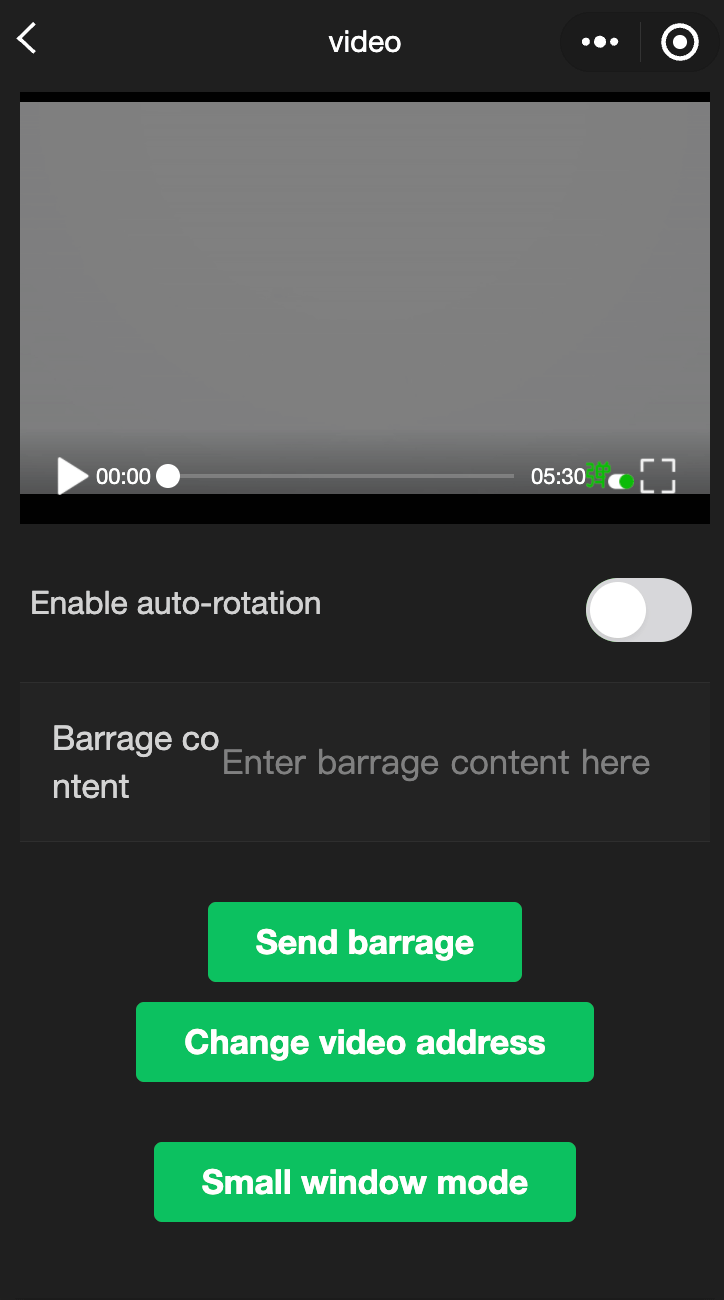
video
- Functional description: video. The lower version is a native component, please pay attention when using it Native Component Usage restrictions.
| Properties | Type | Default value | Description |
|---|---|---|---|
| src | string | - | The resource address of the video to be played, supports cloud file ID |
| duration | number | - | Specify the video duration |
| controls | boolean | true | Whether to display the default playback controls (play/pause button, playback progress, time) |
| danmu-list | Object Array | - | Bullet screen list |
| danmu-btn | boolean | false | Whether to display the bullet screen button, only valid at initialization, cannot be changed dynamically |
| enable-danmu | boolean | false | Whether to display the bullet screen, only valid at initialization, cannot be changed dynamically |
| autoplay | boolean | false | Whether to play automatically |
| loop | boolean | false | Whether to play in a loop |
| muted | boolean | false | Whether to play silently |
| initial-time | number | - | Specify the initial playback position of the video |
| page-gesture | boolean | false | Whether to enable brightness and volume adjustment gestures in non-full screen mode |
| direction | number | - | Set the direction of the video in full screen, if not specified, it will be automatically determined according to the aspect ratio The valid value is 0 (normal vertical) The valid value is 90 (90 degrees counterclockwise of the screen) The valid value is -90 (90 degrees clockwise of the screen) |
| show-progress | boolean | true | If not set, it will be displayed only when the width is greater than 243 |
| show-fullscreen-btn | boolean | true | Whether to display the full screen button |
| show-play-btn | boolean | true | Whether to display the play button in the control bar at the bottom of the video |
| show-center-play-btn | boolean | true | Whether to display the play button in the middle of the video |
| enable-progress-gesture | boolean | true | Whether to enable the progress control gesture |
| object-fit | string | contain | When the video size is inconsistent with the video container size, the video presentation Includes Padding Overlay |
| poster | string | - | The network resource address or cloud file ID of the video cover. If the controls attribute value is false, setting poster is invalid |
| show-mute-btn | boolean | false | Whether to display the mute button |
| title | string | - | The title of the video, displayed at the top when in full screen |
| play-btn-position | string | bottom | The location of the play button: Valid value is bottom (on the controls bar) Valid value is center (in the middle of the video) |
| enable-play-gesture | boolean | false | Whether to enable the play gesture, that is, double-click to switch play/pause |
| auto-pause-if-navigate | boolean | true | When jumping to other mini-program pages, whether to automatically pause the video on this page |
| auto-pause-if-open-native | boolean | true | When jumping to other native pages, whether to automatically pause the video on this page |
| vslide-gesture | boolean | false | In non-full-screen mode, whether to enable the brightness and volume adjustment gesture (same as page-gesture) |
| vslide-gesture-in-fullscreen | boolean | true | In full-screen mode, whether to enable the brightness and volume adjustment gesture |
| picture-in-picture-mode | string/Array | - | Set the small window mode: push, pop, empty string or set multiple modes in array form (such as: ['push', 'pop']) |
| enable-auto-rotation | boolean | false | Whether to enable automatic full screen when the phone is in landscape mode, effective when the system setting turns on automatic rotation |
| bindplay | eventhandle | - | Trigger the play event when starting/resuming playback |
| bindpause | eventhandle | - | Trigger the pause event when pausing playback |
| bindended | eventhandle | - | Trigger the ended event when the playback reaches the end |
| bindtimeupdate | eventhandle | - | Triggered when the playback progress changes, event.detail = {currentTime, duration}. Trigger frequency is once every 250ms |
| bindfullscreenchange | eventhandle | - | Triggered when the video enters and exits full screen, event.detail = {fullScreen, direction}, direction valid values are vertical or horizontal |
| bindwaiting | eventhandle | - | Triggered when video buffering occurs |
| binderror | eventhandle | - | Triggered when video playback errors occur |
| bindprogress | eventhandle | - | Triggered when the loading progress changes, only one section of loading is supported. event.detail = {buffered}, percentage |
| bindloadedmetadata | eventhandle | - | Triggered when the video metadata loading is complete. event.detail = {width, height, duration} |
TIP
<video> default width is 300px and height is 225px, width and height can be set through wxss.
- Small window feature description:
Push mode, that is, the small window appears when jumping from the current page to the next page (page stack push).
Pop mode, that is, triggered when leaving the current page (page stack pop).
Both of the above two routing behaviors trigger the small window.
The small window container size will be automatically determined according to the original component size.
Clicking the small window will navigate the user back to the player page corresponding to the small window.
After the small window appears, the user can click the close button in the upper right corner of the small window or call the context.exitPictureInPicture() interface to close the small window.
Sample code:
wxml:
<view class="page-body">
<view class="page-section tc">
<video
id="myVideo"
src="http://wxsnsdy.tc.qq.com/105/20210/snsdyvideodownload?filekey=30280201010421301f0201690402534804102ca905ce620b1241b726bc41dcff44e00204012882540400&bizid=1023&hy=SH&fileparam=302c020101042530230204136ffd93020457e3c4ff02024ef202031e8d7f02030f42400204045a320a0201000400"
binderror="videoErrorCallback"
danmu-list="{{danmuList}}"
enable-danmu
danmu-btn
show-center-play-btn='{{false}}'
show-play-btn="{{true}}"
controls
picture-in-picture-mode="{{['push', 'pop']}}"
bindenterpictureinpicture='bindVideoEnterPictureInPicture'
bindleavepictureinpicture='bindVideoLeavePictureInPicture'
></video>
<view style="margin: 30rpx auto" class="weui-label">On-screen comment content</view>
<input bindblur="bindInputBlur" class="weui-input" type="text" placeholder="Type your on-screen comment here" />
<button style="margin: 30rpx auto" bindtap="bindSendDanmu" class="page-body-button" type="primary" formType="submit">Send on-screen comment</button>
<navigator style="margin: 30rpx auto" url="picture-in-picture" hover-class="other-navigator-hover">
<button type="primary" class="page-body-button" bindtap="bindPlayVideo">Picture-in-picture mode</button>
</navigator>
</view>
</view>javascript:
function getRandomColor() {
  const rgb = []
  for (let i = 0; i < 3; ++i) {
    let color = Math.floor(Math.random() * 256).toString(16)
    color = color.length === 1 ? '0' + color : color
    rgb.push(color)
  }
  return '#' + rgb.join('')
}

Page({
  onShareAppMessage() {
    return {
      title: 'video',
      path: 'page/component/pages/video/video'
    }
  },

  onReady() {
    this.videoContext = wx.createVideoContext('myVideo')
  },

  onHide() {

  },

  inputValue: '',
  data: {
    src: '',
    danmuList:
    [{
      text: 'The on-screen comment that appears in the first second',
      color: '#ff0000',
      time: 1
    }, {
      text: 'The on-screen comment that appears in the third second',
      color: '#ff00ff',
      time: 3
    }],
  },

  bindInputBlur(e) {
    this.inputValue = e.detail.value
  },

  bindButtonTap() {
    const that = this
    wx.chooseVideo({
      sourceType: ['album', 'camera'],
      maxDuration: 60,
      camera: ['front', 'back'],
      success(res) {
        that.setData({
          src: res.tempFilePath
        })
      }
    })
  },

  bindVideoEnterPictureInPicture() {
    console.log('Enters picture-in-picture mode')
  },

  bindVideoLeavePictureInPicture() {
    console.log ('Exits picture-in-picture mode')
  },

  bindPlayVideo() {
    console.log('1')
    this.videoContext.play()
  },
  bindSendDanmu() {
    this.videoContext.sendDanmu({
      text: this.inputValue,
      color: getRandomColor()
    })
  },

  videoErrorCallback(e) {
    console.log ('Video error message: ')
    console.log(e.detail.errMsg)
  }
})
animation-video
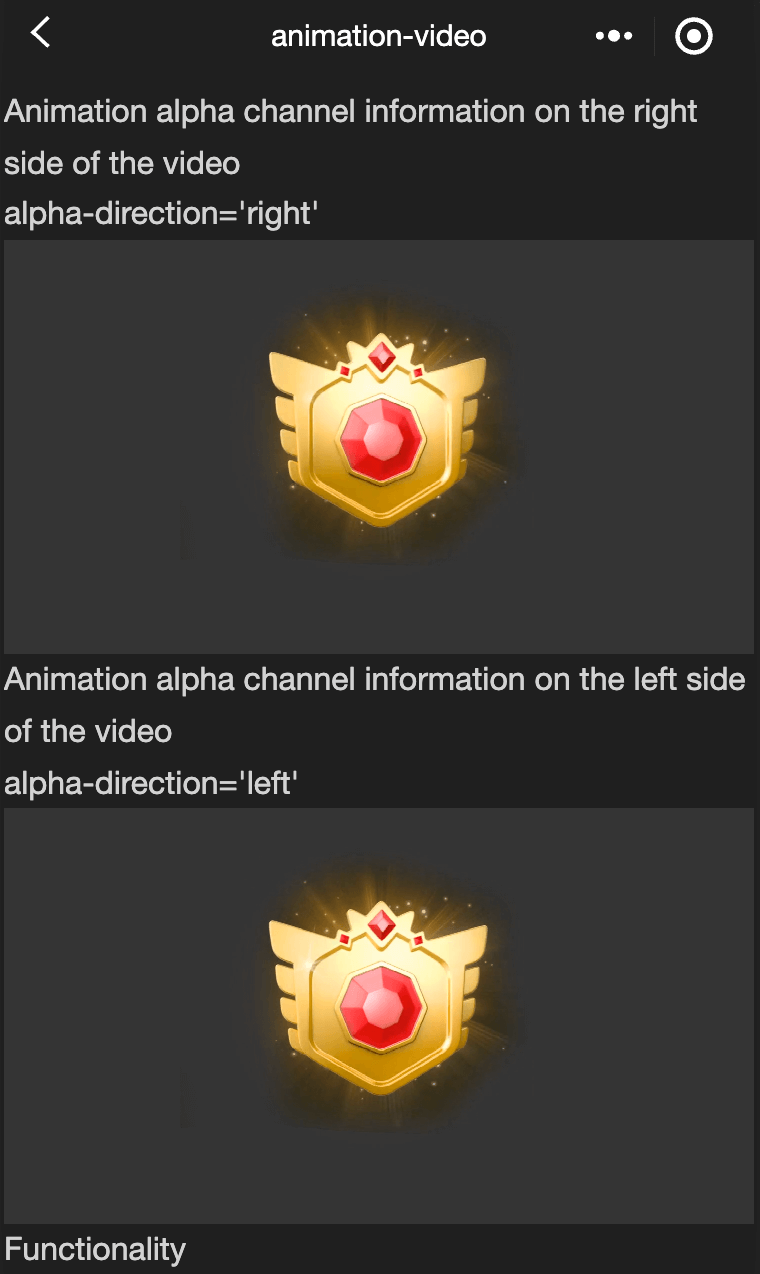
Functional description: animation-video is a front-end component that provides the ability for mini programs to render specific video resources as transparent background animations, which can help developers achieve more immersive and rich animation effects at a low cost. The animation-video component also provides a rich API to control the playback, pause, jump to a specified position, etc. of the animation. For related APIs, see wx.createAnimationVideo
Parameters and descriptions:
| Properties | Type | Default value | Required | Description |
|---|---|---|---|---|
| resource-width | number | 800 | No | The width of the video resource used by the component (unit: px) |
| resource-height | number | 400 | No | The height of the video resource used by the component (unit: px) |
| canvas-style | string | width:400px; height:400px | No | The CSS style used to set the animation canvas |
| path | string | No | Animation resource address, supports relative paths and remote addresses. If it is a remote path, Access-Control-Allow-Origin needs to be set in the response header to prevent cross-domain issues | |
| loop | boolean | false | No | Whether the animation is played in a loop |
| autoplay | boolean | false | No | Whether the animation is automatically |
| alpha-direction | string | left | No | The direction of the alpha channel in the video resource, left means the alpha channel is on the left side of the resource, right Indicates that the alpha channel is on the right side of the resource |
| bindstarted | eventhandle | - | No | Callback for animation start |
| bindended | eventhandle | - | No | The ended event is triggered when the playback reaches the end (the callback is triggered when the natural playback ends, but not when the loop playback ends or the animation is paused) |
Sample code:
wxml:
<view class="wrap">
<view class="card-area">
<view class="top-description border-bottom">
<view>Animation alpha channel information is on the right side of the video</view>
<view>alpha-direction='right'</view>
</view>
<view class="video-area">
<animation-video
path="{{rightAlphaSrcPath}}"
loop="{{loop}}"
resource-width="800"
resource-height="400"
canvas-style="width:200px;height:200px"
autoplay="{{autoplay}}"
bindstarted="onStarted"
bindended="onEnded"
alpha-direction='right'
></animation-video>
</view>
</view>
<view class="card-area">
<view class="top-description border-bottom">
<view>Animation alpha channel information is on the left side of the video</view>
<view>alpha-direction='left'</view>
</view>
<view class="video-area">
<animation-video
path="{{leftAlphaSrcPath}}"
loop="{{loop}}"
resource-width="800"
resource-height="400"
canvas-style="width:200px;height:200px"
autoplay="{{autoplay}}"
bindstarted="onStarted"
bindended="onEnded"
alpha-direction='left'
></animation-video>
</view>
</view>
</view>javascript:
Page({
  data: {
    loop: true,
    leftAlphaSrcPath:
      "https://efe-h2.cdn.bcebos.com/ceug/resource/res/2020-1/1577964961344/003e2f0dcd81.mp4",
    rightAlphaSrcPath:
      "https://b.bdstatic.com/miniapp/assets/docs/alpha-right-example.mp4",
    autoplay: true,
  },
  onStarted() {
    console.log("===onStarted");
  },
  onEnded() {
    console.log("===onEnded");
  },
});
camera
Function Description System camera, this component is Native Component , please pay attention to the relevant restrictions when using it, and the relevant API can be found in wx.createCameraContext
Parameters and descriptions:
| Properties | Type | Legal values | Default value | Description |
|---|---|---|---|---|
| mode | string | normal:Camera mode scanCode:Scan code mode | normal | Application mode, only valid during initialization, cannot be changed dynamically |
| device-position | string | front:Front back:Rear | back | Camera orientation |
| flash | string | auto:Automatic on:On off:Off torch:Always on | auto | Flash, value is auto, on, off |
| bindstop | eventhandle | - | - | The camera is triggered when it is abnormally terminated, such as exiting the background, etc. |
| binderror | eventhandle | - | - | Triggered when the user does not allow the camera to be used |
| bindscancode | eventhandle | - | - | Triggered when the scan code recognition is successful, only effective when mode='scanCode' |
TIP
- Requires 'user authorization' scope.camera, scope.record.
- Only one camera component can be inserted on the same page.
- The onCameraFrame interface returns raw frame data of different sizes according to frame-size. Unlike the image displayed by the Camera component, its actual pixel value is determined by the system.
Sample code:
wxml:
<camera
device-position="back"
flash="off"
binderror="error"
style="width: 100%; height: 300px;"
></camera>
<button type="primary" bindtap="takePhoto">Photograph</button>
<view>Preview</view>
<image mode="widthFix" src="{{src}}"></image>
javascript:
```js
Page({
takePhoto() {
const ctx = wx.createCameraContext()
ctx.takePhoto({
quality: 'high',
success: (res) => {
this.setData({
src: res.tempImagePath
})
}
})
},
error(e) {
console.log(e.detail)
}
})live-player
Functional description: Real-time audio and video playback. This component is a native component, please pay attention when using it Native components
Parameters and descriptions:
| Properties | Type | Legal values | Default value | Description |
|---|---|---|---|---|
| src | string | - | - | Audio and video address. Currently only flv and rtmp formats are supported |
| mode | string | live: Live broadcast RTC: Real-time call | live | Mode |
| autoplay | boolean | - | false | Mode |
| muted | boolean | - | false | Whether to mute |
| orientation | string | vertica: Vertical horizontal: Horizontal | vertical | Direction of screen |
| object-fit | string | contai: The long side of the image fills the screen, and the short side area will be filled with black fillCrop: The image fills the screen, and the part beyond the display area will be cut off | contain | Fill mode, optional values |
| min-cache | number | - | 1 | Minimum buffer, unit s (RTC mode recommended 0.2s) |
| max-cache | number | - | 3 | Maximum buffer, unit s (RTC mode recommended 0.8s), the buffer is used to resist network fluctuations, the more buffered data, the better the network resistance, but the greater the delay |
| sound-mode | string | speaker: Speaker ear: Earpiece | speaker | Application mode, only valid during initialization, cannot be changed dynamically |
| auto-pause-if-navigate | boolean | - | true | When jumping to other mini program pages, whether to automatically pause the real-time audio and video playback of this page |
| auto-pause-if-open-native | boolean | - | true | When jumping to other host APP native pages, whether to automatically pause the real-time audio and video playback of this page |
| picture-in-picture-mode | string/Array | []: Cancel small window push: Trigger small window when route pushes push: Trigger small window when route pushes | - | Set small window mode: push, pop, empty string or set multiple modes in array form (such as: ['push', 'pop']) |
| enable-auto-rotation | boolean | - | false | Whether to turn on automatic full screen when the phone is in landscape mode, effective when the system setting turns on automatic rotation |
| enable-metadata | boolean | - | false | Whether to callback metadata |
| bindstatechange | eventhandle | - | - | Playback status change event, detail = {code} |
| bindfullscreenchange | eventhandle | - | - | Full screen change event, detail = {direction, fullScreen} |
| bindnetstatus | eventhandle | - | - | Network status notification, detail = {info} |
| bindaudiovolumenotify | eventhandle | - | - | Playback volume notification, detail = {} |
| bindenterpictureinpicture | eventhandle | - | - | Player enters small window |
| bindleavepictureinpicture | eventhandle | - | - | Player exits small window |
| bindmetadatachange | eventhandle | - | - | metadata notification, detail = {info} |
status code
| code | Description |
|---|---|
| 2001 | Connected to the server |
| 2002 | Connected to the server, started streaming |
| 2003 | The network received the first video data packet (IDR) |
| 2004 | Video started playing |
| 2006 | Video playback ended |
| 2007 | Video playback Loading |
| 2008 | Decoder started |
| 2009 | Video resolution changed |
| -2301 | Network disconnected, and multiple reconnections were invalid. Please restart the playback for more retries |
| -2302 | Failed to obtain the accelerated streaming address |
| 2101 | Current video frame decoding failed |
| 2102 | Current audio frame decoding failed |
| 2103 | Network disconnected, automatic reconnection started |
| 2104 | Network packets are unstable. It may be due to insufficient downlink bandwidth or uneven outflow from the anchor end |
| 2105 | Current video playback is stuck |
| 2106 | Hard decoding failed to start, using soft decoding |
| 2107 | Current video frames are discontinuous and may be lost |
| 2108 | Current stream hard decoding of the first I frame failed, SDK automatically switched to soft decoding |
| 3001 | RTMP -DNS resolution failed |
| 3002 | RTMP server connection failed |
| 3003 | RTMP server handshake failed |
| 3005 | RTMP read/write failed |
Network status data
| Key name | Description |
|---|---|
| videoBitrate | Current video data receiving bit rate, unit: kbps |
| audioBitrate | Current audio data receiving bit rate, unit: kbps |
| videoFPS | Current video frame rate |
| videoGOP | Current video GOP, that is, the interval between two key frames (I frames), unit: s |
| netSpeed | Current sending/receiving speed |
| netJitter | Network jitter, the greater the jitter, the more unstable the network |
| videoWidth | Video screen width |
| videoHeight | Video screen height |
TIP
- Live-player default width is 300px and height is 225px, and the width and height can be set through wxss.
- Not supported on developer tools yet.
Small window feature description:
Video small window supports the following three trigger modes (set the picture-in-picture-mode attribute on the component):
- Push mode, that is, the small window appears when jumping from the current page to the next page (page stack push).
- Pop mode, that is, triggered when leaving the current page (page stack pop).
- Both of the above two routing behaviors trigger the small window.
- The small window container size will be automatically determined according to the original component size.
- Click the small window, and the user will be navigated back to the player page corresponding to the small window.
- After the small window appears, the user can click the close button in the upper right corner of the small window or call the context.exitPictureInPicture() interface to close the small window.
Sample code:
wxml:
<live-player
  src="https://domain/pull_stream"
  mode="RTC"
  autoplay
  bindstatechange="statechange"
  binderror="error"
  style="width: 300px; height: 225px;"
/>
javescript:
Page({
  statechange(e) {
    console.log("live-player code:", e.detail.code);
  },
  error(e) {
    console.error("live-player error:", e.detail.errMsg);
  },
});
live-pusher
Functional description: Real-time audio and video recording (same-layer rendering is not supported yet).
Parameters and descriptions:
TIP
- Requires 'user authorization' scope.camera, scope.record.
- Not currently supported on developer tools.
- The default width of live-pusher is 100% and there is no default height. Please set the width and height through wxss.
- Error code (errCode)
| code | Description |
|---|---|
| 10001 | User is prohibited from using the camera |
| 10002 | User is prohibited from using recording |
| 10003 | Background sound resource (BGM) failed to load |
| 10004 | Waiting page resource (waiting-image) failed to load |
- status code(code)
| code | Description |
|---|---|
| 1001 | Connected to streaming server |
| 1002 | Handshake with server completed, streaming started |
| 1003 | Opened camera successfully |
| 1004 | Screen recording started successfully |
| 1005 | Dynamically adjust resolution of streaming |
| 1006 | Dynamically adjust bitrate of streaming |
| 1007 | First frame of picture acquisition completed |
| 1008 | Encoder started |
| -1301 | Failed to open camera |
| -1302 | Failed to open microphone |
| -1303 | Failed to video encoding |
| -1304 | Failed to audio encoding |
| -1305 | Unsupported video resolution |
| -1306 | Unsupported audio sampling rate |
| -1307 | Network disconnected, and multiple reconnection rescue failed, please restart streaming for more retries |
| -1308 | Failed to start screen recording, may be rejected by the user |
| -1309 | Screen recording failed, unsupported Android system version, requires system 5.0 or above |
| -1310 | Screen recording was interrupted by other applications |
| -1311 | Android Mic opened successfully, but no audio data was recorded |
| -1312 | Screen recording failed to switch horizontal and vertical screens dynamically |
| 1101 | Poor network conditions: uplink bandwidth is too small, data upload is blocked |
| 1102 | Network disconnected, automatic reconnection has been started |
| 1103 | Hard coding startup failed, soft coding is used |
| 1104 | Video encoding failed |
| 3001 | RTMP -DNS resolution failed |
| 3002 | RTMP server connection failed |
| 3003 | RTMP server handshake failed |
| 3004 | RTMP server actively disconnected, please check the legitimacy of the push address or the validity period of the anti-hotlink |
| 3005 | RTMP read/write failed |
- Network status data (info)
| Key name | Description |
|---|---|
| videoBitrate | The bit rate output by the current video encoder/decoder, unit: kbps |
| audioBitrate | The bit rate output by the current audio encoder/decoder, unit: kbps |
| videoFPS | Current video frame rate |
| videoGOP | Current video GOP, that is, the interval between every two key frames (I frames), unit: s |
| netSpeed | Current sending/receiving speed |
| netJitter | Network jitter, the greater the jitter, the more unstable the network |
| videoWidth | The width of the video screen |
| videoHeight | The height of the video screen |
- Sample code:
wxl:
<live-pusher
  url="https://domain/push_stream"
  mode="RTC"
  autopush
  bindstatechange="statechange"
  style="width: 300px; height: 225px;"
/>
javascript:
Page({
  statechange(e) {
    console.log("live-pusher code:", e.detail.code);
  },
});