Application Management
Application List
functional purpose
The permission holder can create applications and obtain the configuration files of the applications to which the team belongs (this file is very important).
Specific functional operations
- Create Application: The permission holder can directly create applications, and the code resources of this type belong to the team to which the user belongs.
- Filter: You can select the team to which the user belongs in the top filter box to further filter the application list.
- Modify: The permission holder can modify the basic description information of the application, and can modify the Package Name of Android or the Bundle ID of iOS.
- Details: The permission holder can view the configuration files of the application (this file is very important) and sensitive APIs.

Mini Program Review
functional purpose
Application administrators and reviewers can approve the application for the release of the mini program version, and can view the information of the mini program that has been put on the shelf in the 'Listed' list.
Specific functional operations
- Filter: You can select the team to which the user belongs and the application to which the user belongs in the top filter box to further filter the review list, or you can select Pending or Reviewed to view the release review record of the mini program in the application.
- Review: Approve the application for the release of the associated mini program in the current application.
- Details: View the review information of the online version of the associated mini program in the current application.

- Released: After approval, the officially released mini program can be viewed in the 'released' list.
- Removed: The application administrator or reviewer can remove the released mini program.

Mini Program QR Code
After the mini program is released, the platform will generate a QR code for the online version of the mini program. You can click the download QR code at the back of the list in the 'released' list. After downloading the QR code, you can use it to distribute and promote it in other online or offline channels, so that more users can scan the code to experience the mini program.

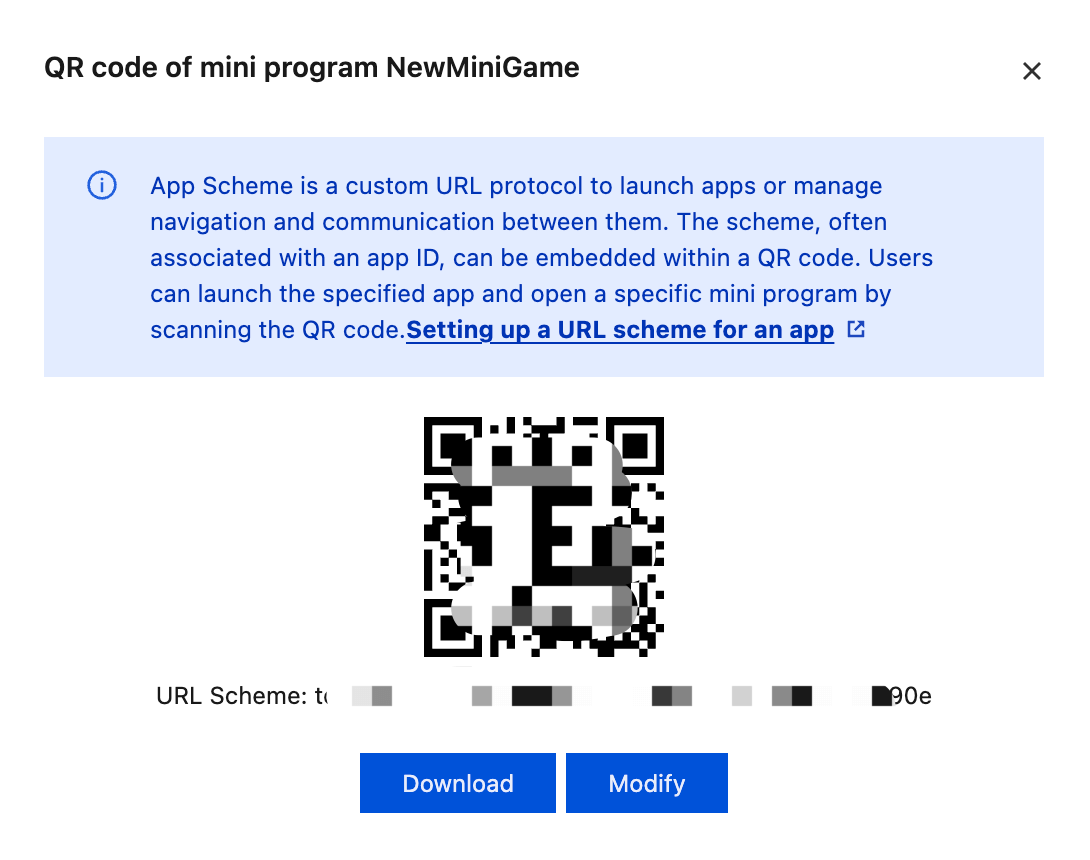
TIP
- Android: Open Mini Program - Configure Scheme to open Mini Program
- iOS: Open Mini Program - Open the official version of Mini Program according to the QR code content
Sensitive API Management
functional purpose
Specific functional operations
Entrance
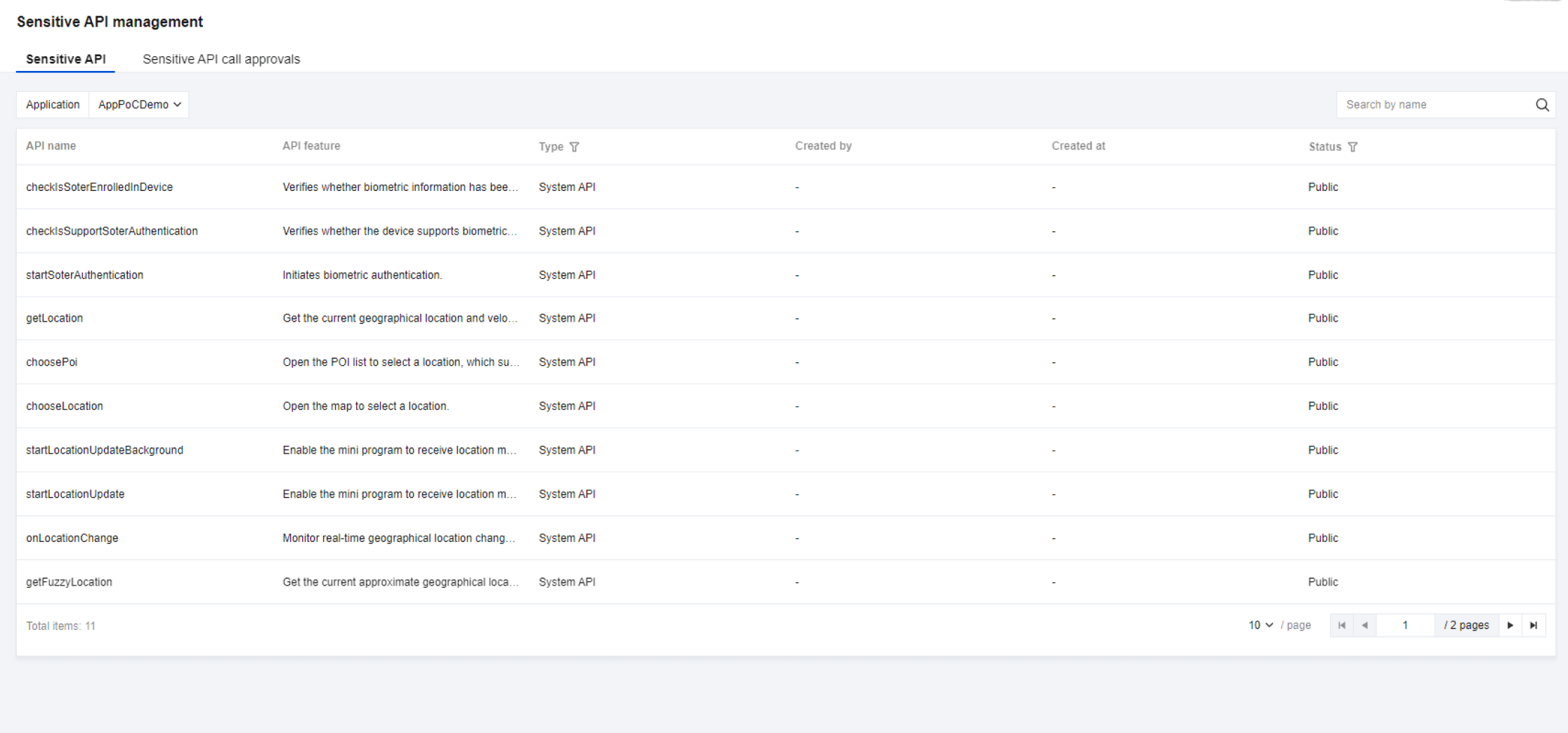
Sensitive API Status
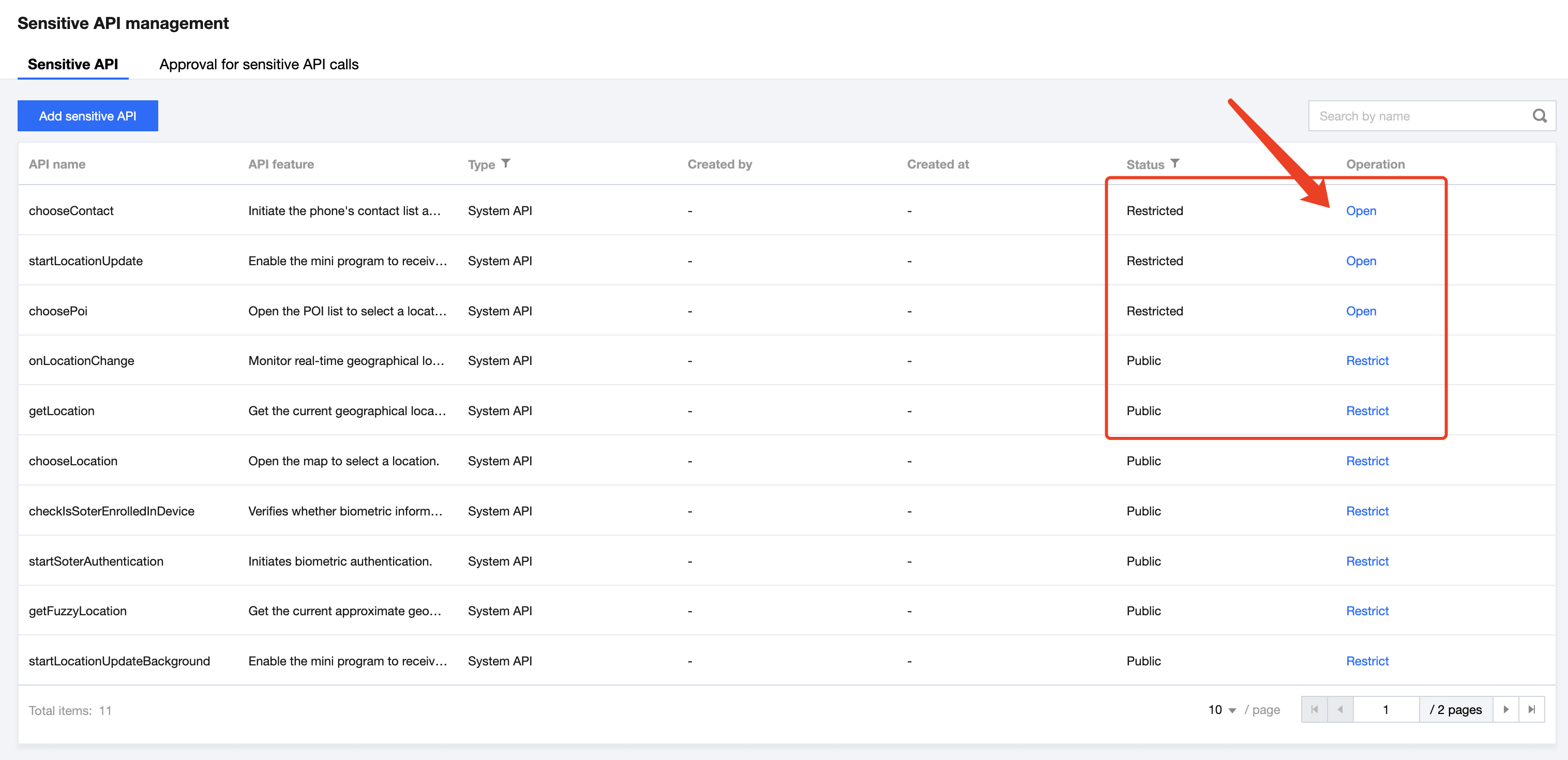
Expand the sensitive API list
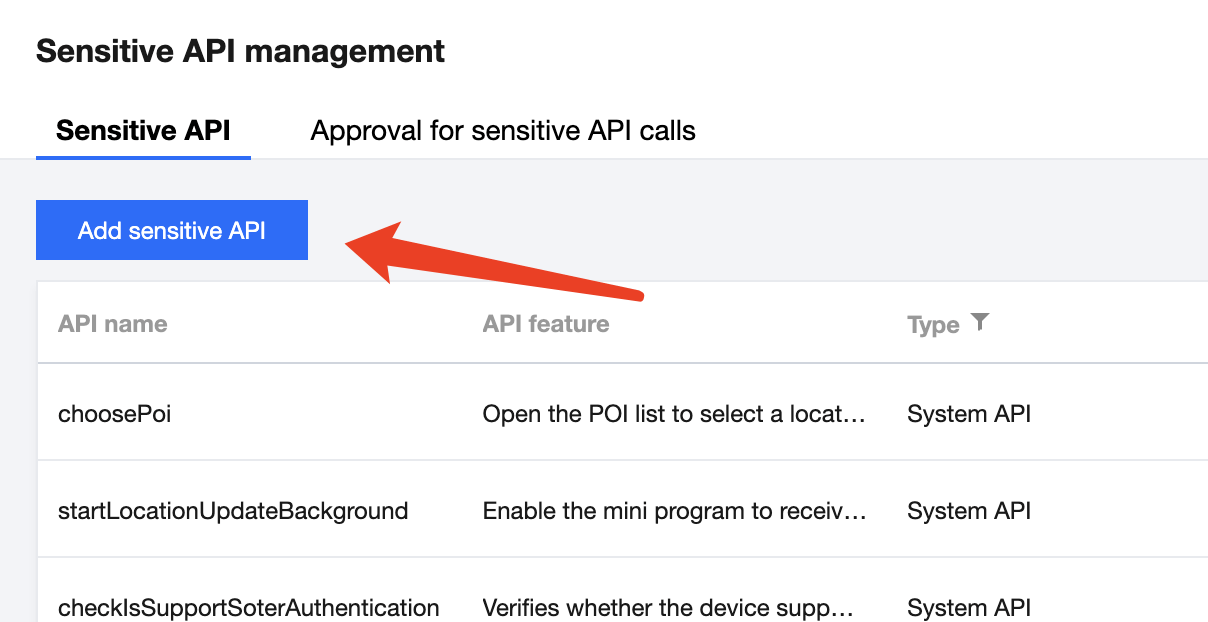
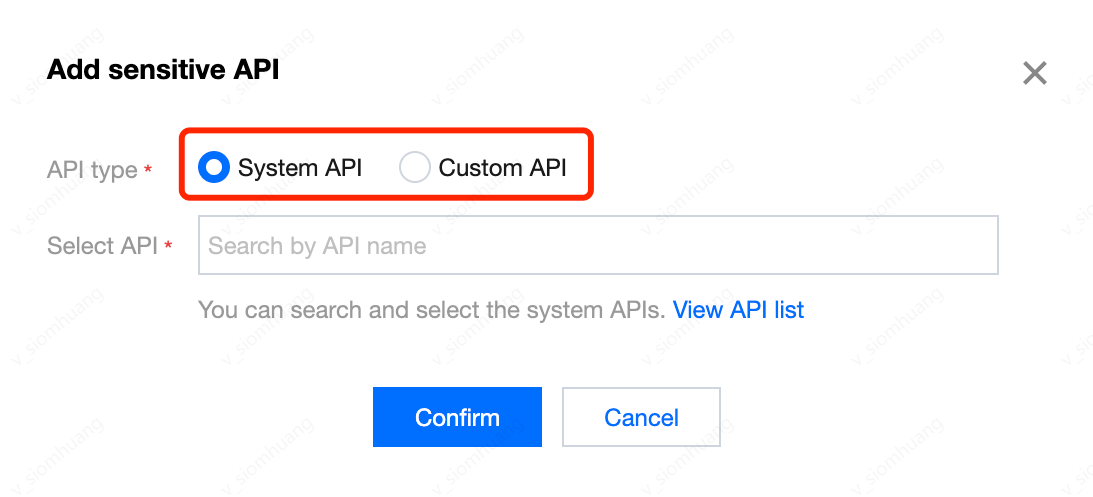
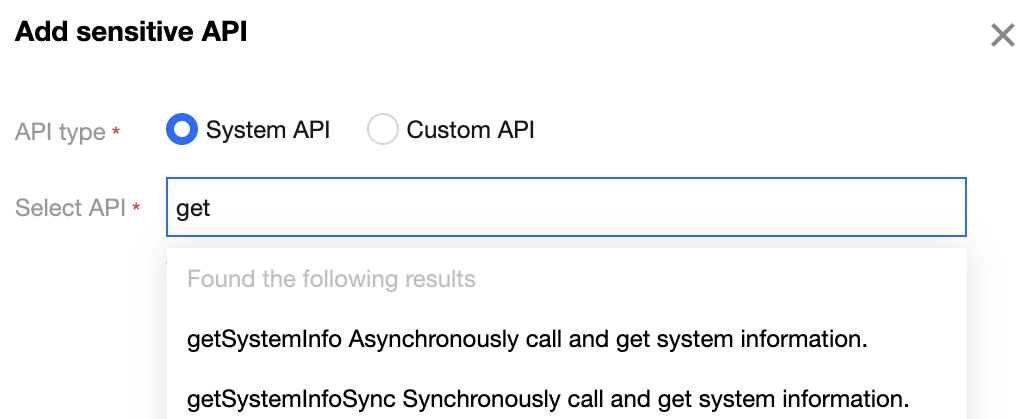
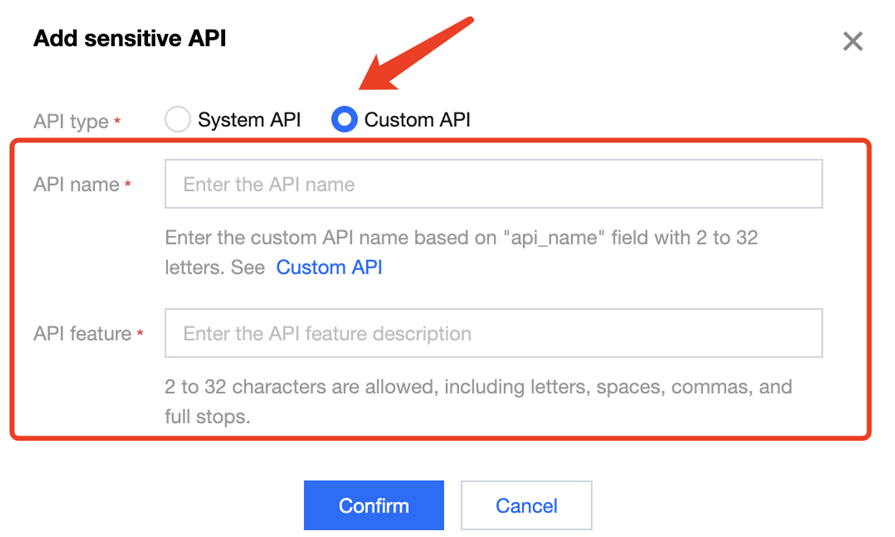
If your application usesCustom API , you can also add the custom API as a sensitive API.
TIP
Please refer to the Custom API Guide document to use the custom API function. Here, please fill in the 'api_name' field for the custom API name.
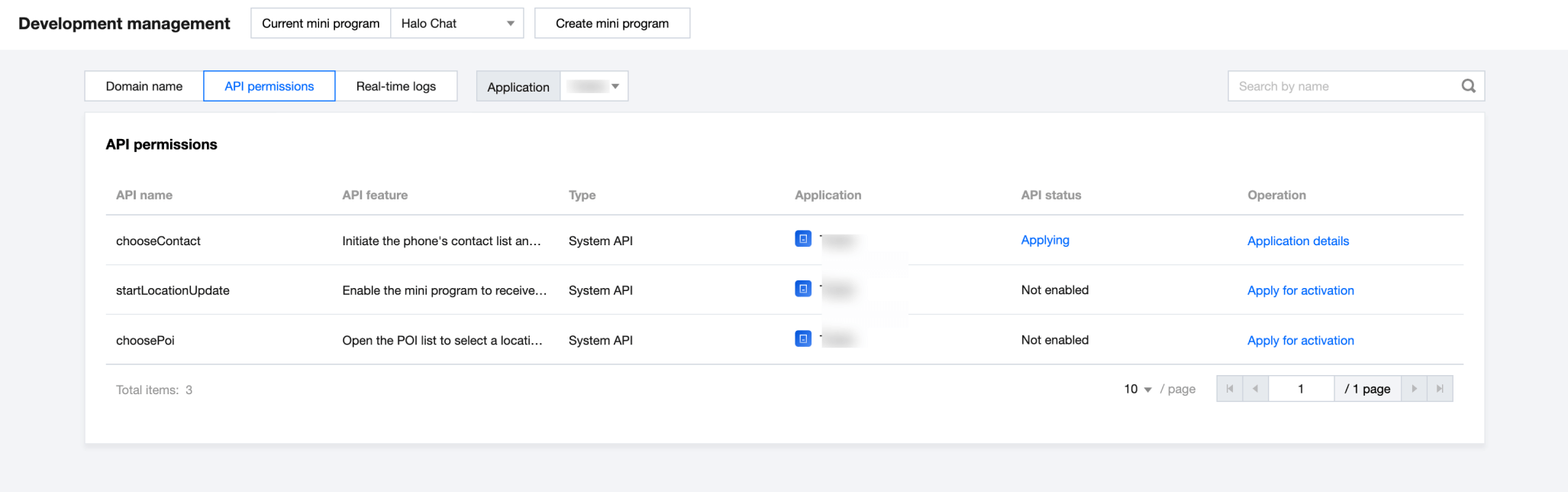
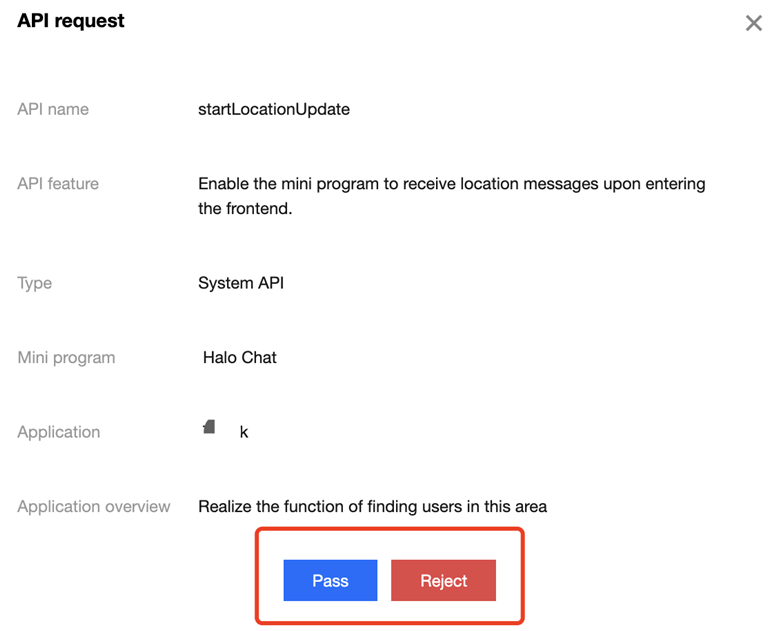
Sensitive API permission application and approval
Mini program applies to the application for sensitive API calling permissions

Configuration Management
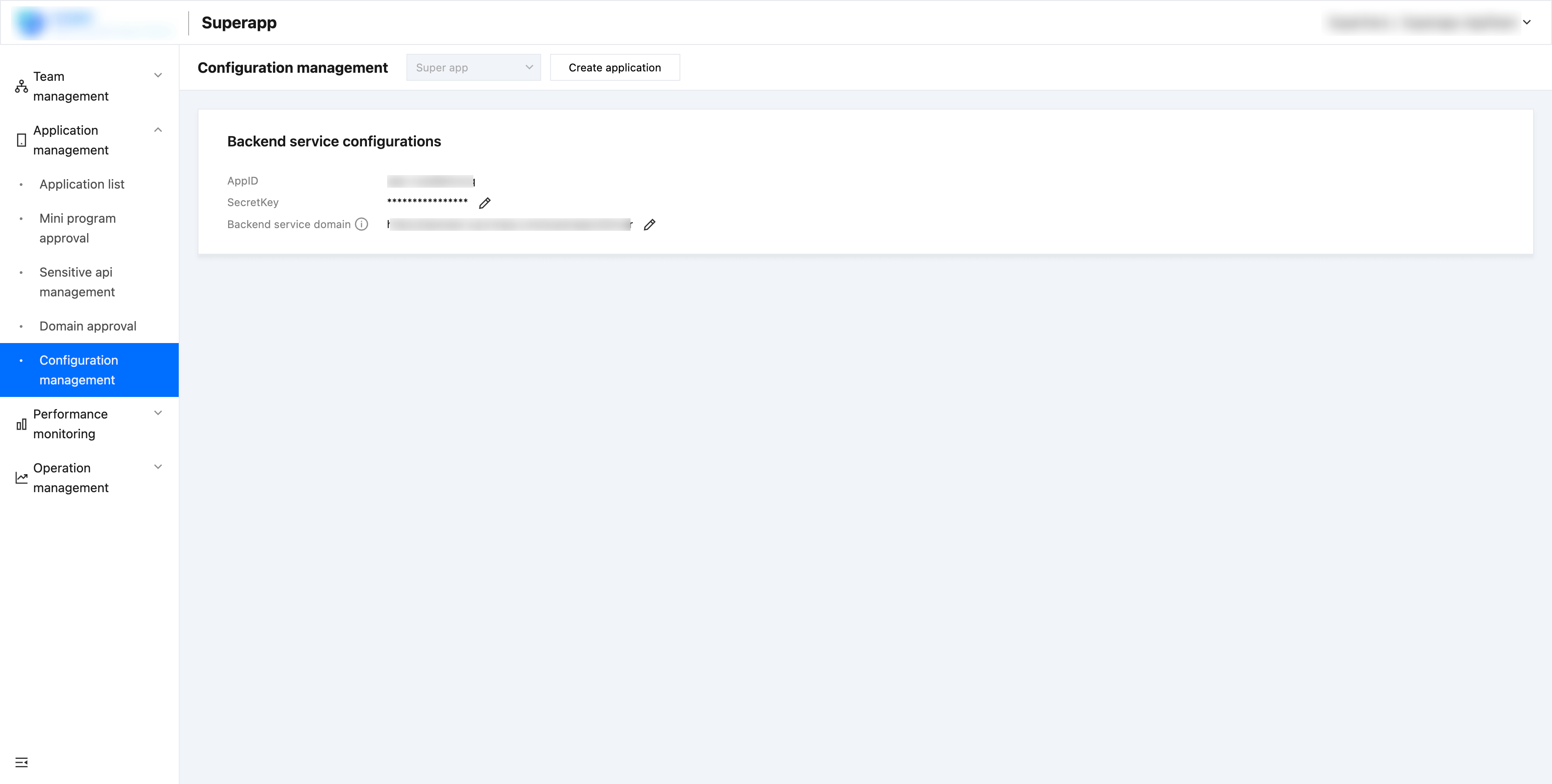
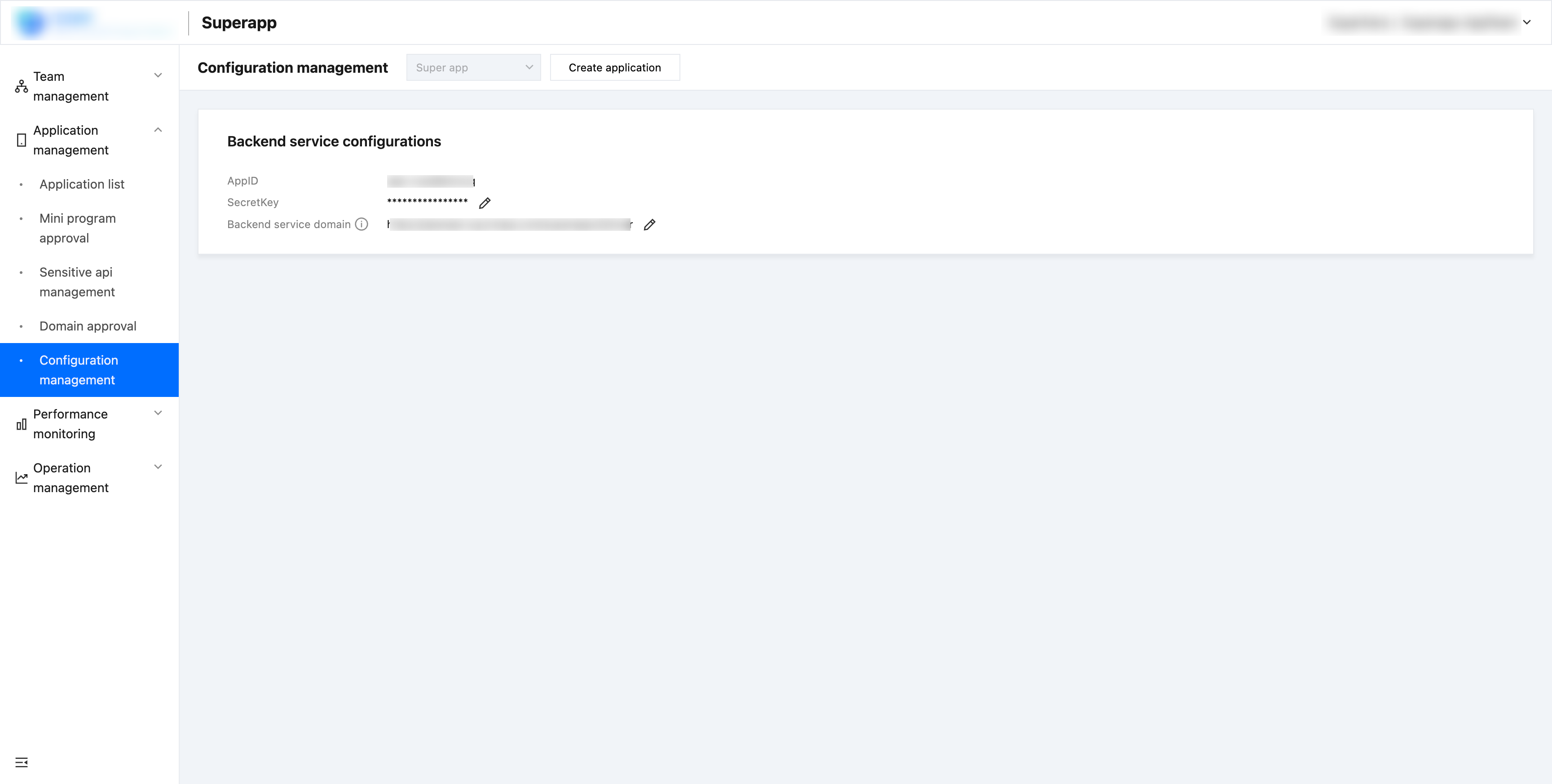
When implementing the standard login function of the Mini Program in the App, you need to first configure the SecretKey required for authentication when logging into the Mini Program and the backend service domain name of the App in the configuration management.
TIP
The SecretKey is generated and managed by the App developer. The recommended format is a string of numbers + English letters with a length of 16, 24, or 32 bits.