canvasContext
- Functional description: Drawing context of canvas component. CanvasContext is an old version of the interface, and the new version of Canvas 2D interface is consistent with the Web.
PropertiesDescription
| Properties | Type | Description |
|---|---|---|
| fillStyle | String | Fill color. Same usageCanvasContext.setFillStyle() |
| strokeStyle | String | Border color. Same usage CanvasContext.setStrokeStyle() |
| font | String | Properties of the current font style. A DOMString string that conforms to the CSS font syntax, at least the font size and font family name must be provided. The default value is 10px sans-serif.CSS font |
| globalCompositeOperation | String | The type of compositing operation applied when drawing a new shape. Currently, the Android version is only applicable to the compositing of fill blocks, and the compositing effects used for stroke segments are all source-over. Currently supported operations include: 1.Android:xor, source-over, source-atop, destination-out, lighter, overlay, darken, lighten, hard-light 2. iOS:xor, source-over, source-atop, destination-over, destination-out, lighter, multiply, overlay, darken, lighten, color-dodge, color-burn, hard-light, soft-light, difference, exclusion, saturation, luminosity |
| shadowOffsetX | Number | Horizontal offset of shadow relative to shape |
| shadowOffsetY | Number | Vertical offset of shadow relative to shape |
| shadowColor | Number | Shadow color |
| shadowBlur | Number | Shadow blur level |
| lineWidth | Number | Line width, same usageCanvasContext.setLineWidth() |
| lineCap | String | Line endpoint style, same usage CanvasContext.setLineCap() |
| lineJoin | String | Line intersection style, same usage CanvasContext.setLineJoin() |
| miterLimit | Number | Maximum miter length, same usage CanvasContext.setMiterLimit() |
| lineDashOffset | Number | Dash offset, initial value is 5 |
| globalAlpha | Number | Global brush transparency, range 0-1, 0 means completely transparent, 1 means completely opaque |
Legal values
Value Description bevel Bevel round Rounded miter Sharp
Method set
arc
TIP
The API usage is as follows: CanvasContext.arc(number x, number y, number r, number sAngle, number eAngle, boolean counterclockwise)
Functional description: Create an arc. The creation of a circle can specify the starting arc as 0 and the ending arc as 2 * Math.PI. Use the stroke or fill method to draw the arc in the canvas.
Parameters and descriptions:
- number x: The x-coordinate of the center of the circle;
- number y: The y-coordinate of the center of the circle;
- number r: The radius of the circle;
- number sAngle: The starting arc, unit arc (at 3 o'clock);
- number eAngle: The ending arc;
- number counterclockwise: Whether the direction of the arc is counterclockwise.
Sample code:
const ctx = wx.createCanvasContext('myCanvas')

// Draw coordinates
ctx.arc(100, 75, 50, 0, 2 * Math.PI)
ctx.setFillStyle('#EEEEEE')
ctx.fill()

ctx.beginPath()
ctx.moveTo(40, 75)
ctx.lineTo(160, 75)
ctx.moveTo(100, 15)
ctx.lineTo(100, 135)
ctx.setStrokeStyle('#AAAAAA')
ctx.stroke()

ctx.setFontSize(12)
ctx.setFillStyle('black')
ctx.fillText('0', 165, 78)
ctx.fillText('0.5*PI', 83, 145)
ctx.fillText('1*PI', 15, 78)
ctx.fillText('1.5*PI', 83, 10)

// Draw points
ctx.beginPath()
ctx.arc(100, 75, 2, 0, 2 * Math.PI)
ctx.setFillStyle('lightgreen')
ctx.fill()

ctx.beginPath()
ctx.arc(100, 25, 2, 0, 2 * Math.PI)
ctx.setFillStyle('blue')
ctx.fill()

ctx.beginPath()
ctx.arc(150, 75, 2, 0, 2 * Math.PI)
ctx.setFillStyle('red')
ctx.fill()

// Draw arc
ctx.beginPath()
ctx.arc(100, 75, 50, 0, 1.5 * Math.PI)
ctx.setStrokeStyle('#333333')
ctx.stroke()

ctx.draw()
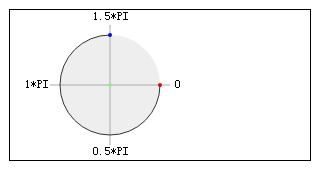
The three key coordinates for arc(100, 75, 50, 0, 1.5 * Math.PI) are as follows:
Green: Center of the circle (100, 75)
Red: Starting arc (0)
Blue: Ending arc (1.5 * Math.PI)
arcTo
TIP
The API usage is as follows: CanvasContext.arcTo(number x1, number y1, number x2, number y2, number radius)
- Functional description: Draw an arc path based on control points and radius
- Parameters and descriptions:
- number x1: The x-axis coordinate of the first control point;
- number y1: The y-axis coordinate of the first control point;
- number x2: The x-axis coordinate of the second control point;
- number y2: The y-axis coordinate of the second control point;
- number radius: The radius of the arc.
draw
TIP
The API usage is as follows: CanvasContext.draw(boolean reserve, function callback)
Functional description: Draw the previous description (path, deformation, style) in the drawing context to the canvas.
Parameters and descriptions:
- boolean reserve:Whether this drawing continues the previous drawing. If the reserve parameter is false, the native layer will clear the canvas before calling the drawing this time and then continue drawing; if the reserve parameter is true, the content on the current canvas is retained, and the content drawn by calling drawCanvas this time is overwritten, and the default is false.
- function callback:Callback function executed after the drawing is completed
Sample code: The second draw() reserve is true, so the previous drawing result is retained, and the fillStyle 'red' set in the context also becomes the default 'black'.
const ctx = wx.createCanvasContext('myCanvas')

ctx.setFillStyle('red')
ctx.fillRect(10, 10, 150, 100)
ctx.draw()
ctx.fillRect(50, 50, 150, 100)
ctx.draw(true)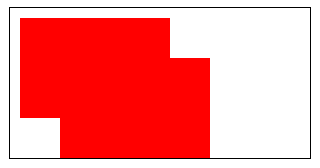
drawImage
TIP
The API usage is as follows: CanvasContext.drawImage(string imageResource, number sx, number sy, number sWidth, number sHeight, number dx, number dy, number dWidth, number dHeight)
Functional description: Draw the image to the canvas
Parameters and descriptions:
- string imageResource, The image resource to be drawn (network images must be downloaded first through getImageInfo / downloadFile);
- number sx,The upper left corner x coordinate of the rectangular selection box of the imageResource to be drawn in the canvas;
- number sy,The upper left corner y coordinate of the rectangular selection box of the imageResource to be drawn in the canvas;
- number sWidth,The width of the rectangular selection box of the imageResource to be drawn in the canvas;
- number sHeight,The height of the rectangular selection box of the imageResource to be drawn in the canvas;
- number dx,imageResourceThe x-axis position of the upper left corner of the imageResource on the target canvas;
- number dy,imageResourceThe y-axis position of the upper left corner of the imageResource on the target canvas;
- number dWidth,The width of the imageResource drawn on the target canvas, allowing the drawn imageResource to be scaled;
- number dHeight,The height of the imageResource drawn on the target canvas, allowing the drawn imageResource to be scaled.
Sample code:
- drawImage(imageResource, dx, dy)
- drawImage(imageResource, dx, dy, dWidth, dHeight)
- drawImage(imageResource, sx, sy, sWidth, sHeight, dx, dy, dWidth, dHeight)
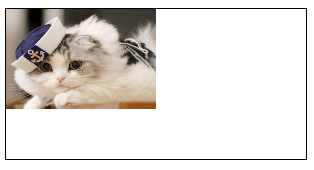
const ctx = wx.createCanvasContext('myCanvas')

wx.chooseImage({
  success(res) {
    ctx.drawImage(res.tempFilePaths[0], 0, 0, 150, 100)
    ctx.draw()
  }
})
createLinearGradient
TIP
The API usage is as follows: CanvasGradient CanvasContext.createLinearGradient(number x0, number y0, number x1, number y1)
Functional description: Create a linear gradient color. The returned CanvasGradient object needs to use CanvasGradient.addColorStop() to specify the gradient points, at least two.
Parameters and descriptions:
- number x0: The x coordinate of the starting point;
- number y0: The y coordinate of the starting point;
- number x1: The x coordinate of the end point;
- number y1: The y coordinate of the end point.
Return value: CanvasGradient
Sample code:
const ctx = wx.createCanvasContext('myCanvas')

// Create linear gradient
const grd = ctx.createLinearGradient(0, 0, 200, 0)
grd.addColorStop(0, 'red')
grd.addColorStop(1, 'white')

// Fill with gradient
ctx.setFillStyle(grd)
ctx.fillRect(10, 10, 150, 80)
ctx.draw()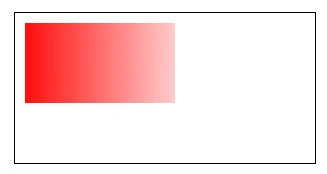
createCircularGradient
TIP
The API usage is as follows: CanvasGradient CanvasContext.createCircularGradient(number x, number y, number r)
Functional description: to create a circular gradient color. The starting point is at the center of the circle and the end point is at the ring. The returned CanvasGradient object needs to use CanvasGradient.addColorStop() to specify the gradient points, at least two.
Parameters and descriptions:
- number x: The x-coordinate of the center of the circle;
- number y: The y-coordinate of the center of the circle;
- number r: The radius of the circle;
Return value: CanvasGradient
Sample code:
const ctx = wx.createCanvasContext('myCanvas')

// Create circular gradient
const grd = ctx.createCircularGradient(75, 50, 50)
grd.addColorStop(0, 'red')
grd.addColorStop(1, 'white')

// Fill with gradient
ctx.setFillStyle(grd)
ctx.fillRect(10, 10, 150, 80)
ctx.draw()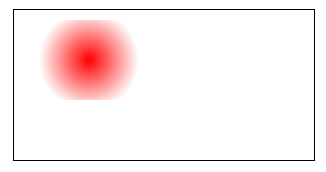
createPattern
TIP
The API usage is as follows: CanvasContext.createPattern(string image, string repetition)。
Functional description: the method of creating a pattern for the specified image, which can repeat the meta-image in the specified direction.
Parameters and descriptions:
string image, The repeated image source supports code package paths and local temporary paths (local paths).
string repetition, How to repeat the image, the legal values
Legal value Description repeat Repeat both horizontally and vertically repeat-x Repeat horizontally repeat-y Repeat vertically no-repeat No repeat
Sample code:
    const ctx = wx.createCanvasContext('myCanvas')
    const pattern = ctx.createPattern('/path/to/image', 'repeat-x')
    ctx.fillStyle = pattern
    ctx.fillRect(0, 0, 300, 150)
    ctx.draw()
measureText
TIP
The API usage is as follows: Object CanvasContext.measureText(string text)
Functional description: Measure text size information. Currently only returns text width, synchronous interface.
Parameters and descriptions:
string text Text to be measured.
Properties Type Description width number Width of text
Sample code:
 const ctx = wx.createCanvasContext('myCanvas')
 ctx.font = 'italic bold 20px cursive'
 const metrics = ctx.measureText('Hello World')
 console.log(metrics.width)
save
TIP
The API usage is as follows: CanvasContext.save()
Functional description: Save drawing context.
Sample code:
const ctx = wx.createCanvasContext('myCanvas')

// save the default fill style
ctx.save()
ctx.setFillStyle('red')
ctx.fillRect(10, 10, 150, 100)

// restore to the previous saved state
ctx.restore()
ctx.fillRect(50, 50, 150, 100)

ctx.draw()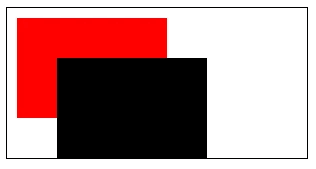
restore
TIP
The API usage is as follows: CanvasContext.restore()
Functional description: Restore previously saved drawing context.
Sample code:
const ctx = wx.createCanvasContext('myCanvas')

// save the default fill style
ctx.save()
ctx.setFillStyle('red')
ctx.fillRect(10, 10, 150, 100)

// restore to the previous saved state
ctx.restore()
ctx.fillRect(50, 50, 150, 100)

ctx.draw()
beginPath
TIP
The API usage is as follows: CanvasContext.beginPath()
Functional description: Start creating a path. Fill or stroke needs to be called to use the path for filling or stroke.
- At the beginning, it is equivalent to calling beginPath once.
- For multiple setFillStyle, setStrokeStyle, setLineWidth and other settings in the same path, the last setting will prevail.
Sample code:
const ctx = wx.createCanvasContext('myCanvas')
// begin path
ctx.rect(10, 10, 100, 30)
ctx.setFillStyle('yellow')
ctx.fill()

// begin another path
ctx.beginPath()
ctx.rect(10, 40, 100, 30)

// only fill this rect, not in current path
ctx.setFillStyle('blue')
ctx.fillRect(10, 70, 100, 30)

ctx.rect(10, 100, 100, 30)

// it will fill current path
ctx.setFillStyle('red')
ctx.fill()
ctx.draw()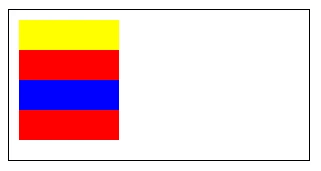
closePath
TIP
The API usage is as follows: CanvasContext.closePath()
Functional description: Close a path. The start and end points will be connected. If fill or stroke is not called after closing the path and a new path is opened, the previous path will not be rendered.
Sample code:
const ctx = wx.createCanvasContext('myCanvas')
ctx.moveTo(10, 10)
ctx.lineTo(100, 10)
ctx.lineTo(100, 100)
ctx.closePath()
ctx.stroke()
ctx.draw()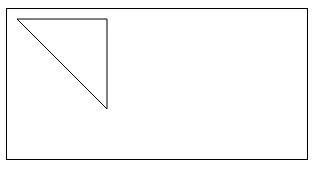
const ctx = wx.createCanvasContext('myCanvas')
// begin path
ctx.rect(10, 10, 100, 30)
ctx.closePath()

// begin another path
ctx.beginPath()
ctx.rect(10, 40, 100, 30)

// only fill this rect, not in current path
ctx.setFillStyle('blue')
ctx.fillRect(10, 70, 100, 30)

ctx.rect(10, 100, 100, 30)

// it will fill current path
ctx.setFillStyle('red')
ctx.fill()
ctx.draw()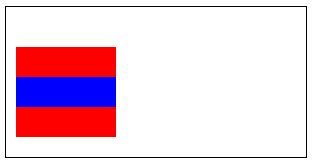
moveTo
TIP
The API usage is as follows: CanvasContext.moveTo(number x, number y)
Functional description: Move the path to a specified point in the canvas, without creating a line, use the stroke method to draw the line
Parameters and descriptions:
- number x,The x coordinate of the target position
- number y,The y coordinate of the target position
Sample code:
const ctx = wx.createCanvasContext('myCanvas')
ctx.moveTo(10, 10)
ctx.lineTo(100, 10)

ctx.moveTo(10, 50)
ctx.lineTo(100, 50)
ctx.stroke()
ctx.draw()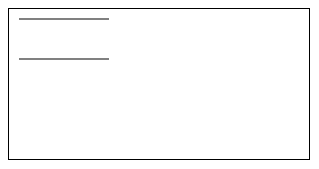
lineTo
TIP
The API usage is as follows: CanvasContext.lineTo(number x, number y)
Functional description: Add a new point, then create a line from the last specified point to the target point, using the stroke method to draw the line.
Parameters and descriptions:
- number x,The x coordinate of the target position
- number y,The y coordinate of the target position
Sample code:
const ctx = wx.createCanvasContext('myCanvas')
ctx.moveTo(10, 10)
ctx.rect(10, 10, 100, 50)
ctx.lineTo(110, 60)
ctx.stroke()
ctx.draw()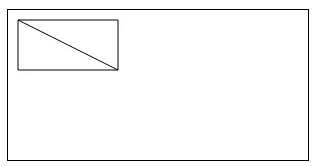
quadraticCurveTo
TIP
The API usage is as follows: CanvasContext.quadraticCurveTo(number cpx, number cpy, number x, number y)
Functional description: Create a quadratic Bezier curve path. The starting point of the curve is the previous point in the path.
Parameters and descriptions:
- number cpx,The x coordinate of the Bezier control point;
- number cpy,The y coordinate of the Bezier control point;
- number x,The x coordinate of the end point;
- number y,The y coordinate of the end point.
Sample code:
const ctx = wx.createCanvasContext('myCanvas')

// Draw points
ctx.beginPath()
ctx.arc(20, 20, 2, 0, 2 * Math.PI)
ctx.setFillStyle('red')
ctx.fill()

ctx.beginPath()
ctx.arc(200, 20, 2, 0, 2 * Math.PI)
ctx.setFillStyle('lightgreen')
ctx.fill()

ctx.beginPath()
ctx.arc(20, 100, 2, 0, 2 * Math.PI)
ctx.setFillStyle('blue')
ctx.fill()

ctx.setFillStyle('black')
ctx.setFontSize(12)

// Draw guides
ctx.beginPath()
ctx.moveTo(20, 20)
ctx.lineTo(20, 100)
ctx.lineTo(200, 20)
ctx.setStrokeStyle('#AAAAAA')
ctx.stroke()

// Draw quadratic curve
ctx.beginPath()
ctx.moveTo(20, 20)
ctx.quadraticCurveTo(20, 100, 200, 20)
ctx.setStrokeStyle('black')
ctx.stroke()

ctx.draw()
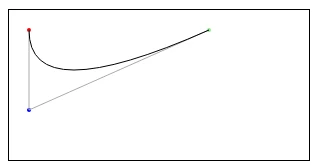
The three key coordinates for moveTo(20, 20) quadraticCurveTo(20, 100, 200, 20) are as follows:
Red: Starting point (20, 20)
Blue: Control point (20, 100)
Green: End point (200, 20)
bezierCurveTo
TIP
The API usage is as follows: CanvasContext.bezierCurveTo(number cp1x, number cp1y, number cp2x, number cp2y, number x, number y)
Functional description: Create a cubic Bezier curve path. The starting point of the curve is the previous point in the path.
Parameters and descriptions:
- number cp1x,x coordinate of the first Bezier control point
- number cp1y,y coordinate of the first Bezier control point
- number cp2x,x coordinate of the second Bezier control point
- number cp2y,y coordinate of the second Bezier control point
- number x,The x coordinate of the end point;
- number y,The y coordinate of the end point.
Sample code:
const ctx = wx.createCanvasContext('myCanvas')

// Draw points
ctx.beginPath()
ctx.arc(20, 20, 2, 0, 2 * Math.PI)
ctx.setFillStyle('red')
ctx.fill()

ctx.beginPath()
ctx.arc(200, 20, 2, 0, 2 * Math.PI)
ctx.setFillStyle('lightgreen')
ctx.fill()

ctx.beginPath()
ctx.arc(20, 100, 2, 0, 2 * Math.PI)
ctx.arc(200, 100, 2, 0, 2 * Math.PI)
ctx.setFillStyle('blue')
ctx.fill()

ctx.setFillStyle('black')
ctx.setFontSize(12)

// Draw guides
ctx.beginPath()
ctx.moveTo(20, 20)
ctx.lineTo(20, 100)
ctx.lineTo(150, 75)

ctx.moveTo(200, 20)
ctx.lineTo(200, 100)
ctx.lineTo(70, 75)
ctx.setStrokeStyle('#AAAAAA')
ctx.stroke()

// Draw quadratic curve
ctx.beginPath()
ctx.moveTo(20, 20)
ctx.bezierCurveTo(20, 100, 200, 100, 200, 20)
ctx.setStrokeStyle('black')
ctx.stroke()

ctx.draw()
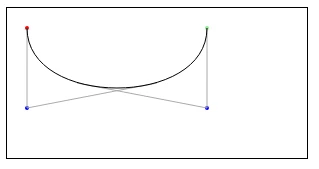
The three key coordinates for moveTo(20, 20) bezierCurveTo(20, 100, 200, 100, 200, 20) are as follows:
Red: starting point (20, 20)
Blue: two control points (20, 100) (200, 100)
Green: end point (200, 20)
rect
TIP
The API usage is as follows: CanvasContext.rect(number x, number y, number width, number height)
Functional description: To create a rectangular path, you need to use fill or stroke method to actually draw the rectangle into the canvas.
Parameters and descriptions:
- number x,The horizontal coordinate of the upper left corner of the rectangular path;
- number y,The vertical coordinate of the upper left corner of the rectangular path;
- number width,The width of the rectangular path;
- number height,The height of the rectangular path.
Sample code:
const ctx = wx.createCanvasContext('myCanvas')
ctx.rect(10, 10, 150, 75)
ctx.setFillStyle('red')
ctx.fill()
ctx.draw()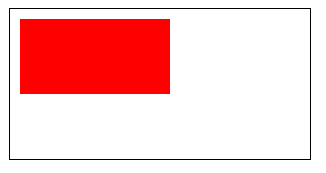
clip
TIP
The API usage is as follows: CanvasContext.clip()
Functional description: Cut any shape and size from the original canvas. Once an area is cut, all subsequent drawings will be limited to the cut area (other areas on the canvas cannot be accessed). The current canvas area can be saved by using the save method before using the clip method, and restored by the restore method at any time in the future.
Parameters and descriptions:
- number x,The horizontal coordinate of the upper left corner of the rectangular path;
- number y,The vertical coordinate of the upper left corner of the rectangular path;
- number width,The width of the rectangular path;
- number height,The height of the rectangular path.
Sample code:
const ctx = wx.createCanvasContext('myCanvas')

wx.downloadFile({
  url: '',
  success(res) {
    ctx.save()
    ctx.beginPath()
    ctx.arc(50, 50, 25, 0, 2 * Math.PI)
    ctx.clip()
    ctx.drawImage(res.tempFilePath, 25, 25)
    ctx.restore()
    ctx.draw()
  }
})
stroke
TIP
The API usage is as follows: CanvasContext.stroke()
Functional description: Draw the border of the current path. The default color is black.
Sample code:
const ctx = wx.createCanvasContext('myCanvas')
ctx.moveTo(10, 10)
ctx.lineTo(100, 10)
ctx.lineTo(100, 100)
ctx.stroke()
ctx.draw()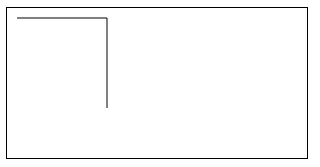
The path drawn by stroke() is calculated from beginPath(), but strokeRect() is not included.
const ctx = wx.createCanvasContext('myCanvas')
// begin path
ctx.rect(10, 10, 100, 30)
ctx.setStrokeStyle('yellow')
ctx.stroke()

// begin another path
ctx.beginPath()
ctx.rect(10, 40, 100, 30)

// only stoke this rect, not in current path
ctx.setStrokeStyle('blue')
ctx.strokeRect(10, 70, 100, 30)

ctx.rect(10, 100, 100, 30)

// it will stroke current path
ctx.setStrokeStyle('red')
ctx.stroke()
ctx.draw()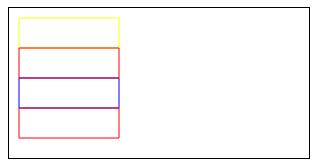
strokeRect
TIP
The API usage is as follows: CanvasContext.strokeRect(number x, number y, number width, number height)
Functional description: Draw a rectangle (non-filled) and set the color of the rectangle line with setStrokeStyle. If not set, the default is black.
Parameters and descriptions:
- number x,The horizontal coordinate of the upper left corner of the rectangular path;
- number y,The vertical coordinate of the upper left corner of the rectangular path;
- number width,The width of the rectangular path;
- number height,The height of the rectangular path.
Sample code:
const ctx = wx.createCanvasContext('myCanvas')
ctx.setStrokeStyle('red')
ctx.strokeRect(10, 10, 150, 75)
ctx.draw()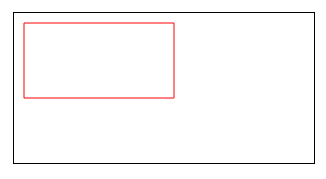
strokeText
TIP
The API usage is as follows: CanvasContext.strokeText(string text, number x, number y, number maxWidth)
- Functional description: A method for drawing text strokes at a given (x, y) position.
- Parameters and descriptions:
- string text,The text to be drawn;
- number x,The x-axis coordinate of the text starting point;
- number y,The y-axis coordinate of the text starting point;
- number maxWidth,The maximum width to be drawn, optional.
clearRect
TIP
The API usage is as follows: CanvasContext.clearRect(number x, number y, number width, number height)
Functional description: Clear the contents of the rectangular area on the canvas.
Parameters and descriptions:
- number x,The horizontal coordinate of the upper left corner of the rectangular path;
- number y,The vertical coordinate of the upper left corner of the rectangular path;
- number width,The width of the rectangular path;
- number height,The height of the rectangular path.
Sample code: clearRect does not draw a white rectangle in the address area, but clears it. In order to have an intuitive feeling, a background color is added to the canvas.
<canvas canvas-id="myCanvas" style="border: 1px solid; background: #123456;" />const ctx = wx.createCanvasContext('myCanvas')
ctx.setFillStyle('red')
ctx.fillRect(0, 0, 150, 200)
ctx.setFillStyle('blue')
ctx.fillRect(150, 0, 150, 200)
ctx.clearRect(10, 10, 150, 75)
ctx.draw()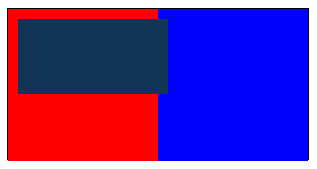
fill
TIP
The API usage is as follows: CanvasContext.fill()
Functional description: Fill the contents in the current path. The default fill color is black.
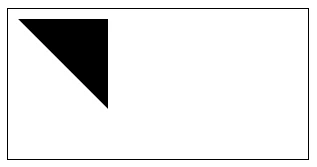
Sample code: If the current path is not closed, the fill() method will connect the starting point and the end point, and then fill it.
const ctx = wx.createCanvasContext('myCanvas')
ctx.moveTo(10, 10)
ctx.lineTo(100, 10)
ctx.lineTo(100, 100)
ctx.fill()
ctx.draw()
The path filled by fill() is calculated from beginPath(), but fillRect() is not included.
const ctx = wx.createCanvasContext('myCanvas')
// begin path
ctx.rect(10, 10, 100, 30)
ctx.setFillStyle('yellow')
ctx.fill()

// begin another path
ctx.beginPath()
ctx.rect(10, 40, 100, 30)

// only fill this rect, not in current path
ctx.setFillStyle('blue')
ctx.fillRect(10, 70, 100, 30)

ctx.rect(10, 100, 100, 30)

// it will fill current path
ctx.setFillStyle('red')
ctx.fill()
ctx.draw()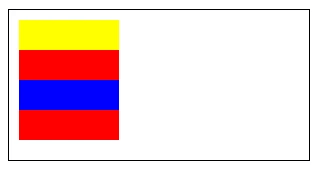
clip
TIP
The API usage is as follows: CanvasContext.fillRect(number x, number y, number width, number height)
Functional description: Fill a rectangle. Use setFillStyle to set the fill color of the rectangle. If not set, the default is black.
Parameters and descriptions:
- number x,The horizontal coordinate of the upper left corner of the rectangular path;
- number y,The vertical coordinate of the upper left corner of the rectangular path;
- number width,The width of the rectangular path;
- number height,The height of the rectangular path.
Sample code:
const ctx = wx.createCanvasContext('myCanvas')
ctx.setFillStyle('red')
ctx.fillRect(10, 10, 150, 75)
ctx.draw()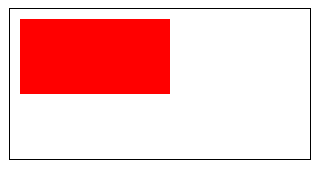
fillText
TIP
The API usage is as follows: CanvasContext.fillText(string text, number x, number y, number maxWidth)
Functional description: Draw the filled text on the canvas.
Parameters and descriptions:
- string text,The text output on the canvas;
- number x,The x coordinate position of the upper left corner of the text;
- number y,The y coordinate position of the upper left corner of the text;
- number maxWidth,The maximum width to be drawn, optional.
Sample code:
const ctx = wx.createCanvasContext('myCanvas')

ctx.setFontSize(20)
ctx.fillText('Hello', 20, 20)
ctx.fillText('MINA', 100, 100)

ctx.draw()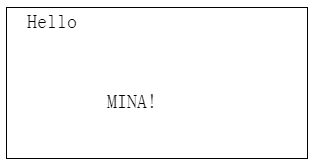
scale
TIP
The API usage is as follows: CanvasContext.scale(number scaleWidth, number scaleHeight)
Functional description: After calling, the horizontal and vertical coordinates of the paths created later will be scaled. Multiple calls will multiply.
Parameters and descriptions:
- number scaleWidth,The multiple of the horizontal coordinate scaling (1 = 100%, 0.5 = 50%, 2 = 200%).
- number scaleHeight,The scale factor of the vertical axis (1 = 100%, 0.5 = 50%, 2 = 200%).
Sample code:
const ctx = wx.createCanvasContext('myCanvas')

ctx.strokeRect(10, 10, 25, 15)
ctx.scale(2, 2)
ctx.strokeRect(10, 10, 25, 15)
ctx.scale(2, 2)
ctx.strokeRect(10, 10, 25, 15)

ctx.draw()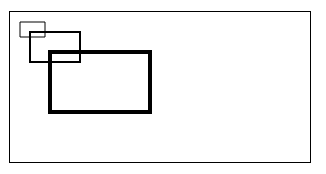
rotate
TIP
The API usage is as follows: CanvasContext.rotate(number rotate)
Functional description: Rotate the current axis clockwise around the origin. Multiple calls to rotate will add up. The origin can be changed with the translate method.
Parameters and descriptions: number rotate,Angle of rotation, in radians degrees * Math.PI/180; degrees range is 0-360.
Sample code:
const ctx = wx.createCanvasContext('myCanvas')

ctx.strokeRect(100, 10, 150, 100)
ctx.rotate(20 * Math.PI / 180)
ctx.strokeRect(100, 10, 150, 100)
ctx.rotate(20 * Math.PI / 180)
ctx.strokeRect(100, 10, 150, 100)

ctx.draw()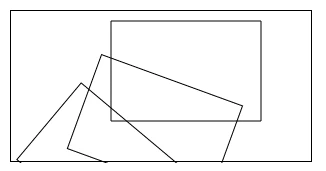
transform
TIP
The API usage is as follows: CanvasContext.transform(number scaleX, number skewX, number skewY, number scaleY, number translateX, number translateY)
- Functional description: Method to use a matrix to add up the current transformation multiple times.
- Parameters and descriptions:
- number scaleX, Scale horizontally;
- number scaleY,Scale vertically;
- number skewX,Tilt horizontally;
- number skewY,Tilt vertically;
- number translate X,Move horizontally;
- number translate Y,Move vertically.
translate
TIP
The API usage is as follows: CanvasContext.translate(number x, number y)
Functional description: Transform the origin of the current coordinate system (0, 0). The default origin of the coordinate system is the top left corner of the page.
Parameters and descriptions:
- number x,Horizontal coordinate translation amount;
- number y,Vertical coordinate translation amount.
Sample code:
const ctx = wx.createCanvasContext('myCanvas')

ctx.strokeRect(10, 10, 150, 100)
ctx.translate(20, 20)
ctx.strokeRect(10, 10, 150, 100)
ctx.translate(20, 20)
ctx.strokeRect(10, 10, 150, 100)

ctx.draw()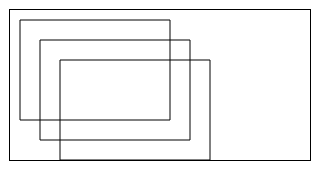
setTransform
TIP
The API usage is as follows: CanvasContext.setTransform(number scaleX, number skewX, number skewY, number scaleY, number translateX, number translateY)
- Functional description: Method to reset (overwrite) the current transformation using a matrix.
- Parameters and descriptions:
- number scaleX, Scale horizontally;
- number scaleY,Scale vertically;
- number skewX,Tilt horizontally;
- number skewY,Tilt vertically;
- number translate X,Move horizontally;
- number translate Y,Move vertically.
setFillStyle
TIP
The API usage is as follows: CanvasContext.setFillStyle(string|CanvasGradient color)
Functional description: Set the fill color.
Parameters and descriptions: string CanvasGradient color, Fill color, default color is black.
Sample code:
const ctx = wx.createCanvasContext('myCanvas')
ctx.setFillStyle('red')
ctx.fillRect(10, 10, 150, 75)
ctx.draw()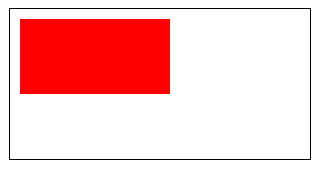
setStrokeStyle
TIP
The API usage is as follows: CanvasContext.setStrokeStyle(string|CanvasGradient color)
Functional description: Set the stroke color
Parameters and descriptions: string CanvasGradient color, Fill color, default color is black.
Sample code:
const ctx = wx.createCanvasContext('myCanvas')
ctx.setStrokeStyle('red')
ctx.strokeRect(10, 10, 150, 75)
ctx.draw()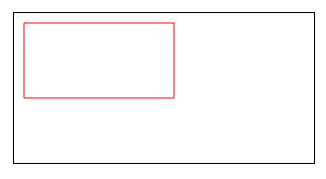
setShadow
TIP
The API usage is as follows: CanvasContext.setShadow(number offsetX, number offsetY, number blur, string color)
Functional description: Set the shadow style
Parameters and descriptions:
- number offsetX, The horizontal offset of the shadow relative to the shape, the default value is 0;
- number offsetY, The vertical offset of the shadow relative to the shape, the default value is 0;
- number blur, The blur level of the shadow, the larger the value, the blurrier it is. Range 0-100, the default value is 0;
- string color, The color of the shadow. The default value is black.
Sample code:
const ctx = wx.createCanvasContext('myCanvas')
ctx.setFillStyle('red')
ctx.setShadow(10, 50, 50, 'blue')
ctx.fillRect(10, 10, 150, 75)
ctx.draw()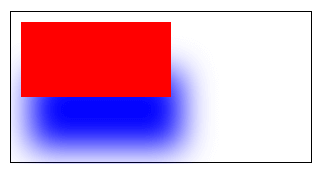
setGlobalAlpha
TIP
The API usage is as follows: CanvasContext.setGlobalAlpha(number alpha)
Functional description: Set the global brush transparency.
Parameters and descriptions: number alpha,Transparency. Range 0-1, 0 means completely transparent, 1 means completely opaque.
Sample code:
const ctx = wx.createCanvasContext('myCanvas')

ctx.setFillStyle('red')
ctx.fillRect(10, 10, 150, 100)
ctx.setGlobalAlpha(0.2)
ctx.setFillStyle('blue')
ctx.fillRect(50, 50, 150, 100)
ctx.setFillStyle('yellow')
ctx.fillRect(100, 100, 150, 100)

ctx.draw()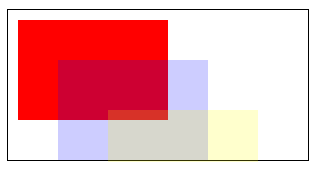
setLineWidth
TIP
The API usage is as follows: CanvasContext.setLineWidth(number lineWidth)
Functional description: Set the line width.
Parameters and descriptions: number lineWidth,The line width, unit: px.
Sample code:
const ctx = wx.createCanvasContext('myCanvas')
ctx.beginPath()
ctx.moveTo(10, 10)
ctx.lineTo(150, 10)
ctx.stroke()

ctx.beginPath()
ctx.setLineWidth(5)
ctx.moveTo(10, 30)
ctx.lineTo(150, 30)
ctx.stroke()

ctx.beginPath()
ctx.setLineWidth(10)
ctx.moveTo(10, 50)
ctx.lineTo(150, 50)
ctx.stroke()

ctx.beginPath()
ctx.setLineWidth(15)
ctx.moveTo(10, 70)
ctx.lineTo(150, 70)
ctx.stroke()

ctx.draw()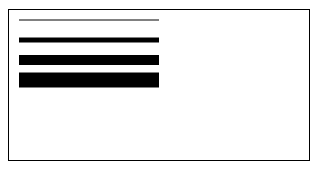
setLineJoin
TIP
The API usage is as follows: CanvasContext.setLineJoin(string lineJoin)
Functional description: Set the intersection style of the line.
**Parameters and descriptions:**string lineJoin,The end intersection style of the line. The legal values
Value Description bevel Bevel round Rounded corners miter Pointed corners Sample code:
const ctx = wx.createCanvasContext('myCanvas')
ctx.beginPath()
ctx.moveTo(10, 10)
ctx.lineTo(100, 50)
ctx.lineTo(10, 90)
ctx.stroke()

ctx.beginPath()
ctx.setLineJoin('bevel')
ctx.setLineWidth(10)
ctx.moveTo(50, 10)
ctx.lineTo(140, 50)
ctx.lineTo(50, 90)
ctx.stroke()

ctx.beginPath()
ctx.setLineJoin('round')
ctx.setLineWidth(10)
ctx.moveTo(90, 10)
ctx.lineTo(180, 50)
ctx.lineTo(90, 90)
ctx.stroke()

ctx.beginPath()
ctx.setLineJoin('miter')
ctx.setLineWidth(10)
ctx.moveTo(130, 10)
ctx.lineTo(220, 50)
ctx.lineTo(130, 90)
ctx.stroke()

ctx.draw()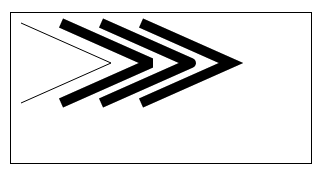
setLineCap
TIP
The API usage is as follows: CanvasContext.setLineCap(string lineCap)
Functional description: Set the endpoint style of the line.
**Parameters and descriptions:**string lineGap,The ending intersection style of the line. The legal values
Value Description butt Add a straight edge to each end of the line round Add a round cap to each end of the line square Add a square cap to each end of the line Sample code:
const ctx = wx.createCanvasContext('myCanvas')
ctx.beginPath()
ctx.moveTo(10, 10)
ctx.lineTo(150, 10)
ctx.stroke()

ctx.beginPath()
ctx.setLineCap('butt')
ctx.setLineWidth(10)
ctx.moveTo(10, 30)
ctx.lineTo(150, 30)
ctx.stroke()

ctx.beginPath()
ctx.setLineCap('round')
ctx.setLineWidth(10)
ctx.moveTo(10, 50)
ctx.lineTo(150, 50)
ctx.stroke()

ctx.beginPath()
ctx.setLineCap('square')
ctx.setLineWidth(10)
ctx.moveTo(10, 70)
ctx.lineTo(150, 70)
ctx.stroke()

ctx.draw()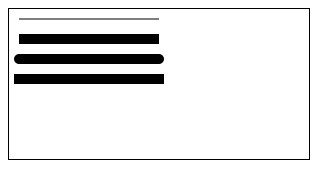
setLineDash
TIP
The API usage is as follows: CanvasContext.setLineDash(Array.<number> pattern, number offset)
Functional description: Set the dashed line style.
Parameters and descriptions:
- Array.<
number> pattern, A set of numbers that describe the length of the alternately drawn line segments and spacing (in coordinate space units). - number offset, Dash offset.
- Array.<
Sample code:
const ctx = wx.createCanvasContext('myCanvas')

ctx.setLineDash([10, 20], 5);

ctx.beginPath();
ctx.moveTo(0,100);
ctx.lineTo(400, 100);
ctx.stroke();

ctx.draw()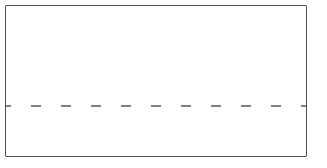
setMiterLimit
TIP
The API usage is as follows: CanvasContext.setMiterLimit(number miterLimit)
Functional description: Set the maximum miter length. The miter length refers to the distance between the inner and outer corners of the intersection of two lines. It is only valid when CanvasContext.setLineJoin() is miter. If the maximum tilt length is exceeded, the connection will be displayed with lineJoin as bevel.
Parameters and descriptions: number miterLimit, Maximum miter length.
Sample code:
const ctx = wx.createCanvasContext('myCanvas')
ctx.beginPath()
ctx.setLineWidth(10)
ctx.setLineJoin('miter')
ctx.setMiterLimit(1)
ctx.moveTo(10, 10)
ctx.lineTo(100, 50)
ctx.lineTo(10, 90)
ctx.stroke()

ctx.beginPath()
ctx.setLineWidth(10)
ctx.setLineJoin('miter')
ctx.setMiterLimit(2)
ctx.moveTo(50, 10)
ctx.lineTo(140, 50)
ctx.lineTo(50, 90)
ctx.stroke()

ctx.beginPath()
ctx.setLineWidth(10)
ctx.setLineJoin('miter')
ctx.setMiterLimit(3)
ctx.moveTo(90, 10)
ctx.lineTo(180, 50)
ctx.lineTo(90, 90)
ctx.stroke()

ctx.beginPath()
ctx.setLineWidth(10)
ctx.setLineJoin('miter')
ctx.setMiterLimit(4)
ctx.moveTo(130, 10)
ctx.lineTo(220, 50)
ctx.lineTo(130, 90)
ctx.stroke()

ctx.draw()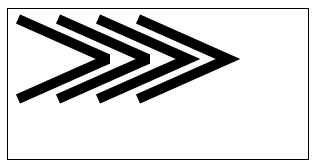
setFontSize
TIP
The API usage is as follows: CanvasContext.setFontSize(number fontSize)
Functional description: Set the font size
Parameters and descriptions: number fontSize, Font size.
Sample code:
const ctx = wx.createCanvasContext('myCanvas')

ctx.setFontSize(20)
ctx.fillText('20', 20, 20)
ctx.setFontSize(30)
ctx.fillText('30', 40, 40)
ctx.setFontSize(40)
ctx.fillText('40', 60, 60)
ctx.setFontSize(50)
ctx.fillText('50', 90, 90)

ctx.draw()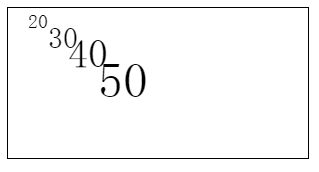
setTextAlign
TIP
The API usage is as follows: CanvasContext.setTextAlign(string align)
Functional description: Set the text alignment.
**Parameters and descriptions:**string align, Text alignment. The legal values
Value Description left Left alignment center Center alignment right Right alignment Sample code:
const ctx = wx.createCanvasContext('myCanvas')

ctx.setStrokeStyle('red')
ctx.moveTo(150, 20)
ctx.lineTo(150, 170)
ctx.stroke()

ctx.setFontSize(15)
ctx.setTextAlign('left')
ctx.fillText('textAlign=left', 150, 60)

ctx.setTextAlign('center')
ctx.fillText('textAlign=center', 150, 80)

ctx.setTextAlign('right')
ctx.fillText('textAlign=right', 150, 100)

ctx.draw()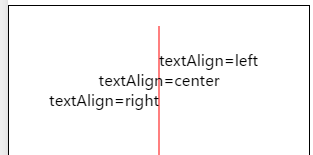
setTextBaseline
TIP
The API usage is as follows: CanvasContext.setTextBaseline(string textBaseline)
Functional description: Set the vertical alignment of the text.
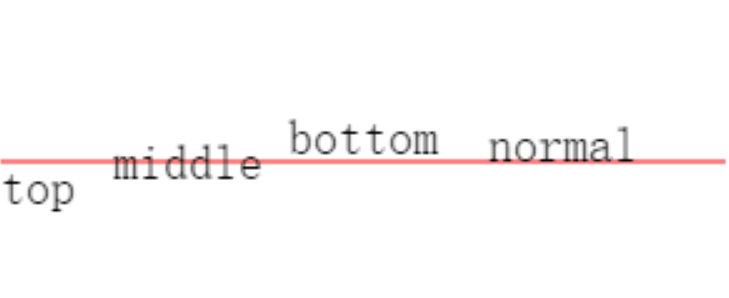
**Parameters and descriptions:**string textBaseline, Vertical alignment of the text. The legal values
Value Description top Top alignment bottom Bottom alignment middle Center alignment normal Default Sample code:
const ctx = wx.createCanvasContext('myCanvas')

ctx.setStrokeStyle('red')
ctx.moveTo(5, 75)
ctx.lineTo(295, 75)
ctx.stroke()

ctx.setFontSize(20)

ctx.setTextBaseline('top')
ctx.fillText('top', 5, 75)

ctx.setTextBaseline('middle')
ctx.fillText('middle', 50, 75)

ctx.setTextBaseline('bottom')
ctx.fillText('bottom', 120, 75)

ctx.setTextBaseline('normal')
ctx.fillText('normal', 200, 75)

ctx.draw()